

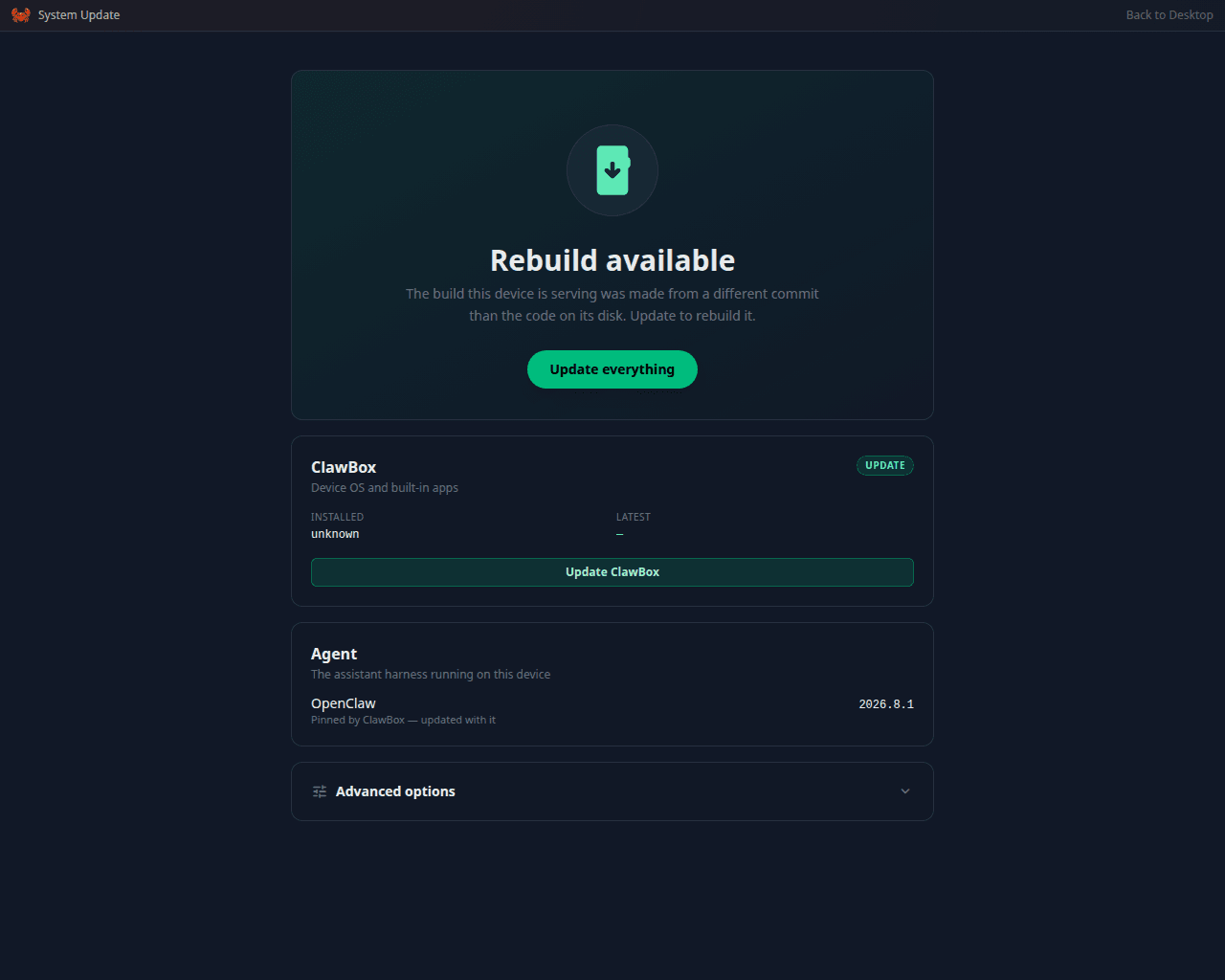
The System Update app: what is installed, what is waiting, and one button to take it
Update from the ClawBox screen (recommended)
1
Open System Update
Browse to
http://YOUR_BOX_IP, log in, and open the System Update app (also reachable from Settings).2
Start the update
If a new version is available, click Update. The app shows live progress through every step.
3
Let it reboot
The final step reboots the box — it’s offline for a minute or two. That’s normal, not a hang. When it’s back, the update is done.
Update over SSH (headless alternative)
Same update, no browser needed:There is no
clawbox command on PATH. The CLI wrapper exists in the checkout and is
run through Bun — bun run /home/clawbox/clawbox/mcp/clawbox-cli.ts update — but all it
does is re-run install.sh with sudo, so calling the installer directly is equivalent
and works in a non-interactive SSH session too. On a Hermes box the CLI
path refuses; use Settings → System Update or the installer command above, which reads
the edition lock and runs the edition-correct steps.An update got stuck, or the box misbehaves afterward
On older versions the in-app update could stall midway (usually when the device had local code changes). The fix is the recovery updater — a standalone one-liner that hard-syncs the box to the latest release and rebuilds everything, keeping your data:1
Connect over SSH
clawbox.local — the name relies on mDNS, which many Windows machines and routers handle unreliably (find the IP in your router’s connected-devices list).2
Run the recovery updater
3
Confirm it's back
active. Then reload http://YOUR_BOX_IP and send your assistant a message — a reply confirms everything is running.