

What ships
Hermes Agent
Installed at
~/.local/bin/hermes, with its own configuration in ~/.hermes.
It backs the desktop chat, Telegram, and the device tools.Hermes dashboard
Hermes’ own web interface, opened by the Hermes desktop icon. It sits
behind your normal ClawBox login.
Hermes Skills
The Skills desktop app — the capability store for this edition.
ClawBox device tools
The agent operates the device through the ClawBox MCP server, same as on
OpenClaw. The tool set is slightly different — see below.
Memory Shard
Hermes ships no memory index of its own, so ClawBox builds one here and
gives the agent a tool to search it — indexed in the ClawBox AI cloud by
default wherever your plan covers it, or on the box if you prefer.
Email you can receive
Reading an inbox is a Hermes-edition feature. Sending mail you approve works
on every edition.
ClawKeep backups
The backup daemon archives the Hermes agent’s own state through its own
Hermes backend — no
openclaw CLI is involved. A snapshot only restores onto
a box running the agent that wrote it, and the app shows the reason it refused.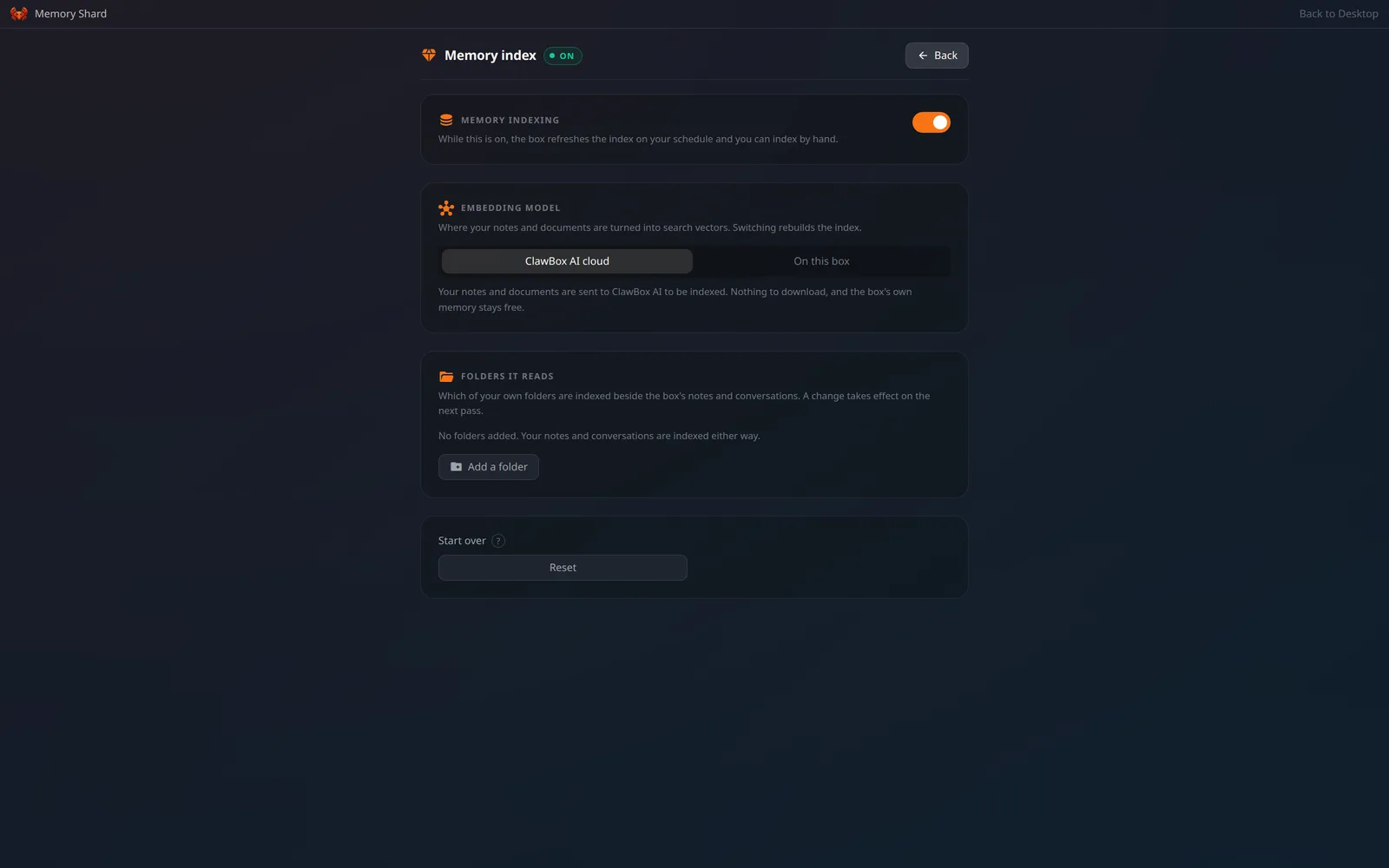
Memory Shard on a Hermes-edition box: the index is embedded through the ClawBox AI cloud, with the model on the box as the alternative
What is absent, on purpose
The OpenClaw gateway is not part of this edition. It is not installed, its systemd unit is stopped, disabled and masked, and theopenclaw command does
not exist on the box. Everything that depended on it is gone with it:
The desktop
Everything else on the desktop is unchanged — Chat, Terminal, Files, Browser, Coding, Remote Desktop, System Update, Settings and any webapps — with one edition difference inside Settings: Appearance offers the Hermes wallpaper and Deep Space, not the standard product’s ClawBox artwork (see the table above). ClawKeep is present and works here: it archives this edition’s Hermes state. Two icons are specific to this edition:- Skills — the Hermes Skills store.
- Hermes — the Hermes dashboard. It opens through an authenticated proxy on
port
8090, using the ClawBox session you already have, so you do not log in twice. The dashboard itself never leaves the device’s own loopback interface.
Chat
The desktop chat and Telegram both talk to Hermes. Message-by-message you can change:- Provider and model — the pills beneath the message box.
- Reasoning effort — the brain icon, eight levels from None to Ultra. This is a per-conversation override; the device default lives in Hermes’ own configuration. ClawBox AI shows seven: its backend rejects Ultra. The on-device model is a two-state switch — Thinking off / Thinking on — not an effort scale, because its backend has a boolean and no graded middle. A provider that accepts no reasoning level at all simply does not show the control.
-
Slash commands. Type
/in the composer and Hermes’ own command catalogue appears, filtered to the commands it says belong in a chat composer. They are executed by Hermes, not handed to the model as text.
Plugins, and when the assistant restarts
Hermes has skills and plugins, and they load differently. A skill is read again as it is needed. A plugin is looked for once, when the assistant’s process starts — so a plugin installed or enabled after that does not reach your chat, and does not reach a new conversation either, even while the command line reports it as installed and enabled. The box closes that gap for you. When the set of plugins your box declares changes, ClawBox restarts the assistant so it picks them up, and shows a notice on the desktop naming the plugin and telling you to open a new chat. The assistant can ask for the same restart itself, which is what it does right after it installs or enables a plugin for you — and it is told whether the replacement is already serving or still on its way back, so it can say the same to you. Nothing here needs elevated rights: ClawBox stops a process it already owns and the system brings it straight back. If the restart cannot be taken at all, the assistant is told so rather than told the plugin is live — the plugin is installed but not loaded, and rebooting the box from Settings loads it.Telegram
Telegram works the way it does on any ClawBox: connect a bot token in Settings, then approve each sender from the pairing request that appears. Underneath, Hermes runs its own gateway process and its own pairing store, so a bot token saved on an OpenClaw device is not the same record as one saved here. If you migrate a device by reflashing, re-enter the token.What the agent can do
The agent operates the device through the ClawBox MCP server, exactly as on an OpenClaw box. A tool that cannot work on the running edition is not registered at all, so the differences are visible to the agent rather than being failures it discovers at call time.
“Everything else” is the bulk of it: device status and stats, power, disk,
logs, screen capture, Wi-Fi, backups, Telegram status, preferences, opening and
listing desktop apps, notifications, webapps, code projects, and
browser_open/navigate/screenshot/close.
The full catalogue is on the Agent Interface page.