

- the chat panel, which opens when you click the mascot and docks beside your windows;
- the Chat app, a full window from the desktop icon.
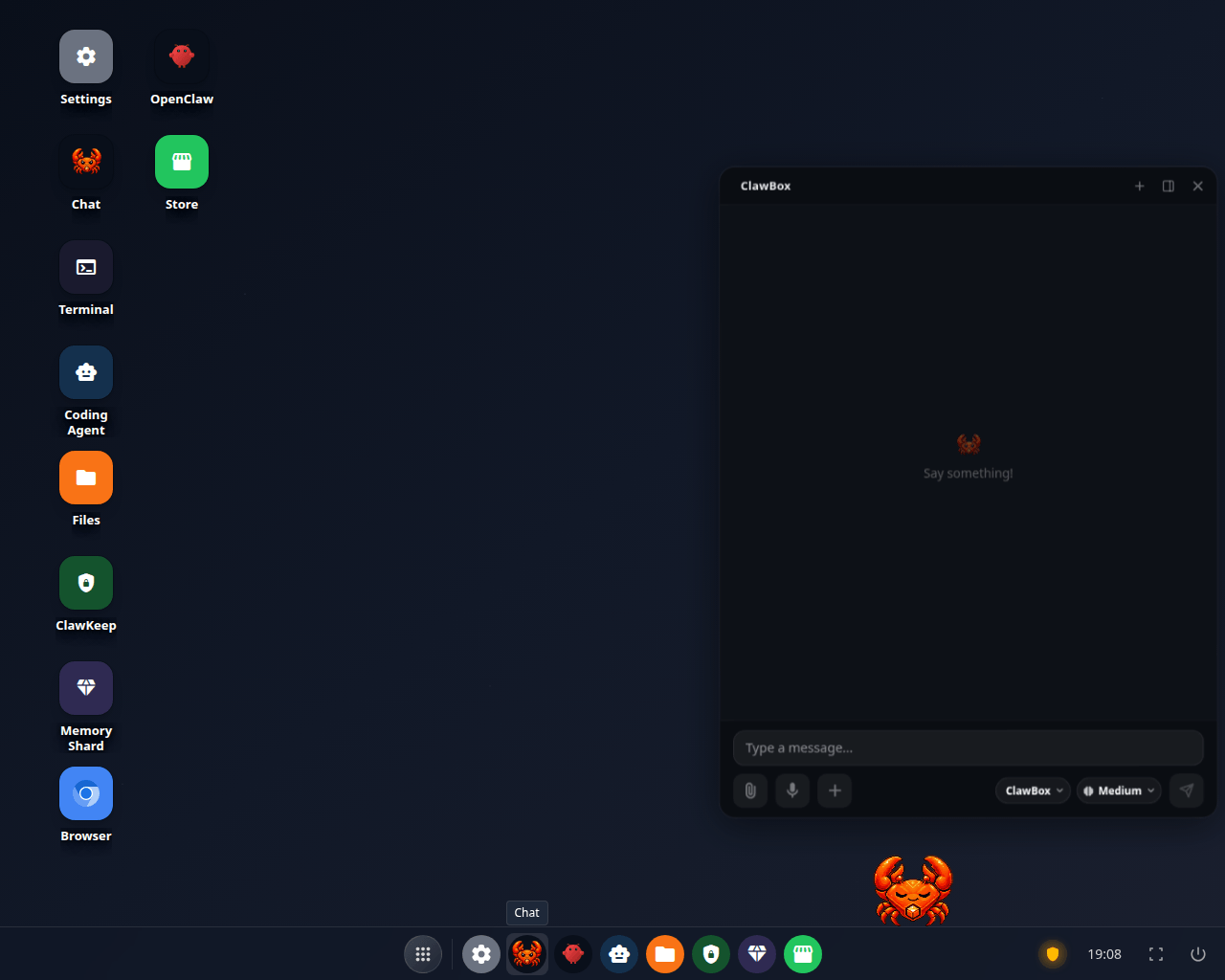
The chat panel on a conversation nobody has said anything in yet
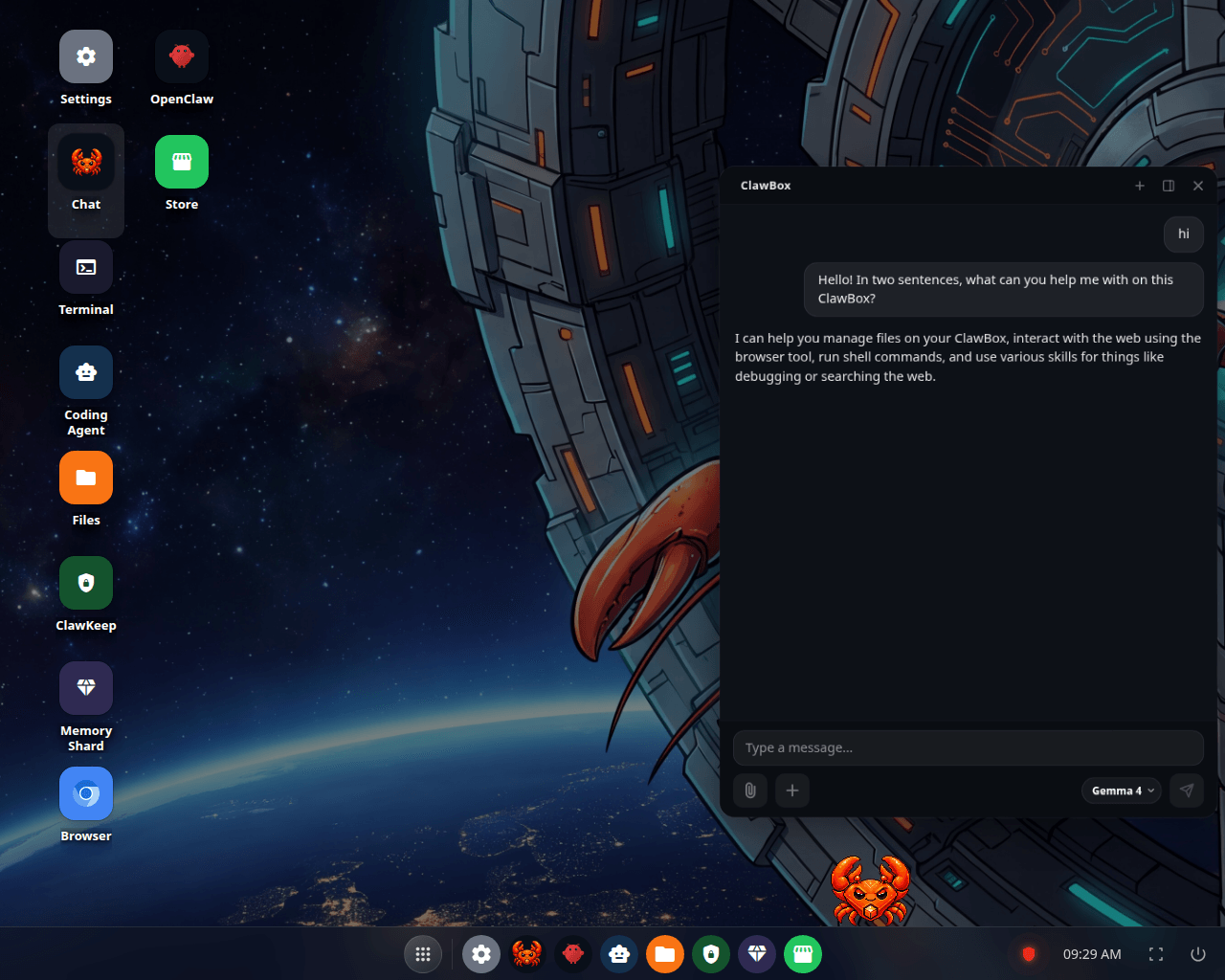
The same chat with something in it — this box is answering from Gemma 4, on the box itself
The pills: provider, model and reasoning
The chat panel carries up to three pills in the row beneath the message box.
A change applies to the running agent. There is no restart between you and the next
message, and open conversations are not dropped.
On ClawBox AI there is no model pill — the chat names the provider and there is
nothing to choose. The reasoning control is there and starts at Medium.
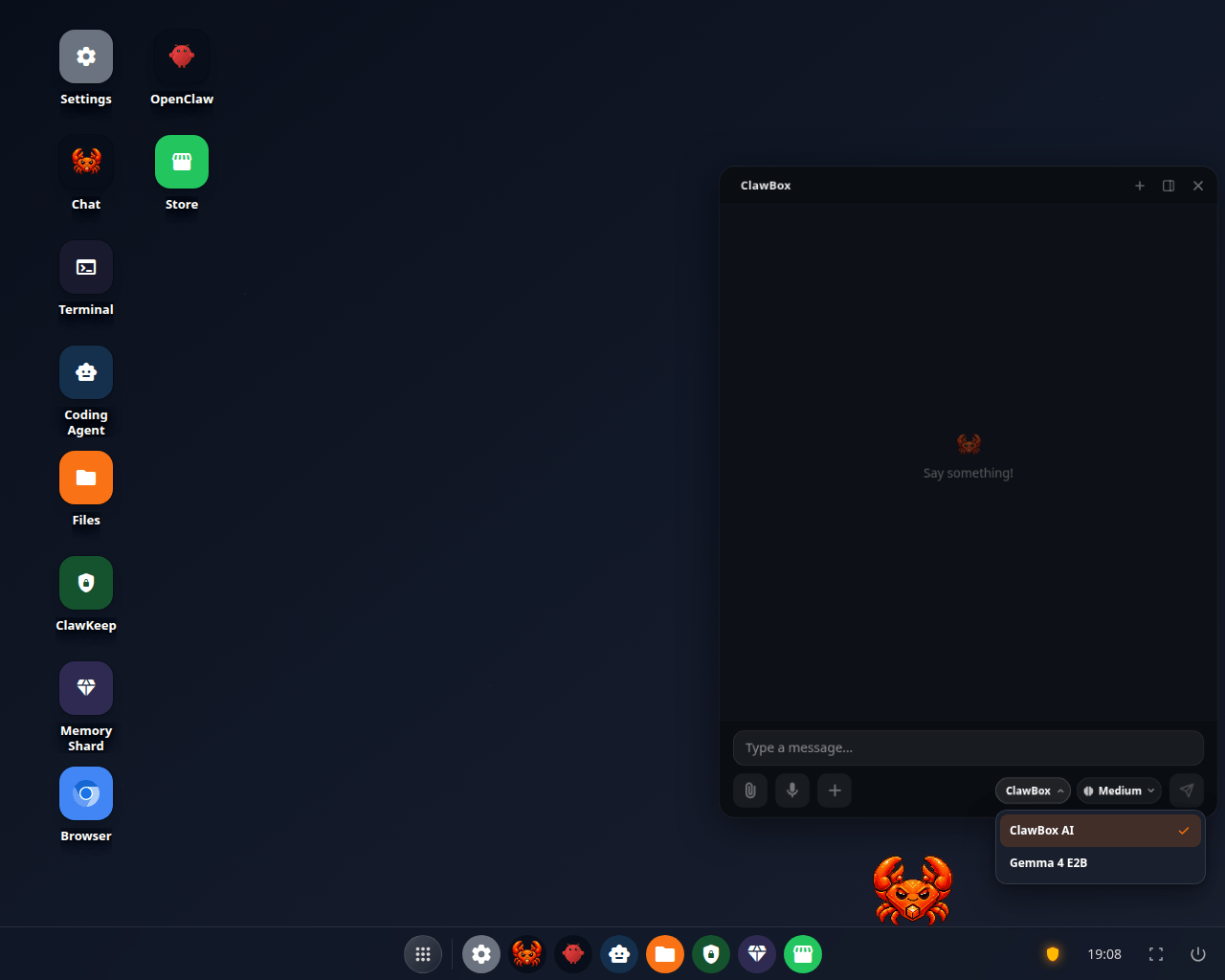
The provider pill open on a box running ClawBox AI, with the on-device model to switch to
Slash commands
Type/ in the composer and a menu appears with the commands your assistant actually
publishes — the built-in ones plus anything your skills and plugins added. Each row shows
the command, its arguments if it takes any, and the agent’s own one-line description.
Keep typing to filter; pick a row to insert it.
The list is read from the agent itself, so it is never out of date with what your box can
actually run, and it differs between editions and between boxes with different skills
installed.
When the assistant needs you
Three kinds of card can appear in the transcript. All three mean the assistant has stopped and is waiting for you.A question
A question
The assistant asks you to choose. Each option carries its own short description —
usually the consequence of picking it — and there is a field for an answer of your
own. One Send answer submits the whole card. There is no skip: to decline, leave
it, and the assistant carries on when its own timer runs out.
An approval
An approval
The assistant is asking to do something that needs your permission. Allow once,
Always allow or Deny. Nothing happens until you answer, and if nobody answers
in time the window closes and it does not go ahead.
Email waiting to be sent
Email waiting to be sent
The assistant wrote a message and wants to send it from your account. You read it
first and nothing goes out until you approve — this card is what Ask me before
sending in Settings → Email produces, and it is on by default. You can send them
all, send one, or delete them without sending. See
Messaging channels.
When a message fails
A failed turn says what actually went wrong: the provider’s own reason, not a generic “the run failed”. Two common cases have their own wording:- A fallback model answered. Your first-choice model refused or errored and the next model in the chain replied instead. The reply says which model wrote it.
- An allowance ran out. On ClawBox AI, the chat says whether it was the weekly chat allowance, the 5-hour burst or the memory-indexing allowance, and when it frees up. Your usage is in Settings → Providers.
Voice
Voice in — in the chat panel, press the microphone to record. The recording is turned into text and sent as a message. The Chat app has no microphone. Recording needs a secure connection, so on a plainhttp:// address the
chat points you at this box’s Remote Access tunnel instead of failing silently.
Voice out — Settings → Voice → Spoken replies, off by default. With it on, a
reply gets a player on its bubble: press play, scrub through it, or download the audio.
A question you asked out loud is answered out loud. Where your box answers messaging
channels, a voice note there gets a spoken reply too.
Speaking on Telegram, WhatsApp and Discord is an OpenClaw-edition feature. On the Hermes
edition the box still answers out loud in the chat; replies on those channels stay in text.
Other things in the composer
- Attach a picture or take a photo, and ask about it.
- Generate a picture from a description.
- Several chats at once, in the chat panel — tabs across the top, each its own conversation. New session starts a fresh one in the same tab.
- Files the assistant produced appear as cards you can download, with their real name and size.