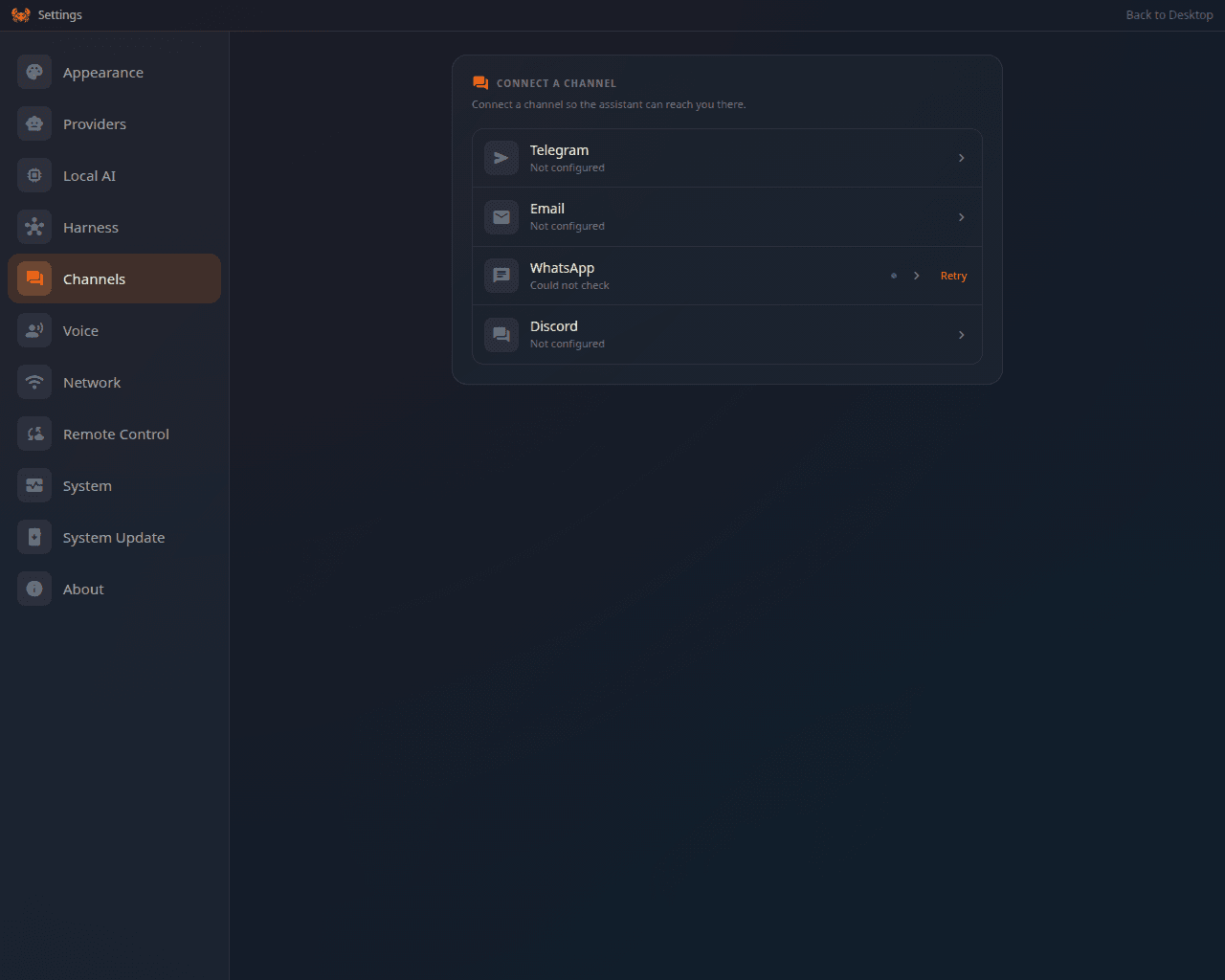
Your ClawBox answers where you already are. Settings → Channels sets up each one, on
both editions, and each panel shows what the channel is doing right
now rather than only whether it saved.
Settings → Channels: every channel with what it is doing right now
Telegram
Paste a bot token, approve each sender.
Discord
Paste a bot token, add the bot to your server.
WhatsApp
Pair the box with your account.
Email
Send mail you approve; read mail on the Hermes edition.
Web chat is built into the ClawBox desktop and needs no setup — see Chat.
You need only the bot token. The box reads your application id and your servers from
Discord itself and builds the invite link for you.
1
Create the bot
In the Discord Developer Portal, create an application, add a bot and copy its token.
On the same tab turn Public Bot off — otherwise anyone can add your bot to their
server.
2
Enable the Message Content intent
Without it the bot appears online and never sees a message. The panel says so
explicitly if it is missing.
3
Paste the token
Settings → Channels → Discord. There is no Application ID field to fill in.
4
Add the bot to a server
Use the button in the panel, pick your server in Discord and authorize. The panel
finishes the setup by itself once the bot has joined, and gives that server’s owner
access. Opening the link again later sets up a second server the same way.
5
Choose who may talk to it
Who may talk to the assistant lists the members; only the people you tick get an
answer. The server owner is selected by default.
The status card names the exact state — Connected and listening, Message Content intent
is off, Connected, but nobody is allowed in, Not connected — so a silent bot has a
cause you can act on.The invite the box builds grants: view channels, send messages, read history, attach
files, embed links, add reactions.
Settings → Channels → Email connects a mailbox and offers three modes, under What the
assistant may do with this mailbox:
Mode
What it allows
Send only
The assistant can send email from this account. It never opens the mailbox.
Read on demand
It can also look at recent messages, but only when you ask it to. It never checks the mailbox on its own.
Answer senders
It watches the mailbox and replies to the people you list, without asking you first. Hermes edition only.
Whether the assistant may put a message on the wire by itself is one switch: Ask me
before sending, on by default. While it is on, every message the assistant writes waits
as a draft in Settings → Email and in the chat, where you read it and choose Send
it or Delete it without sending. You can also have every waiting draft posted to a
second Telegram bot with an Approve button, so you can send it without opening the page. Turn the switch off and the assistant
sends on its own — the panel says so under the switch.Answer senders is separate and is not covered by that switch: in that mode the Hermes
edition’s own mail gateway watches the mailbox and replies in-thread to the addresses you
list, without asking you first.
Receiving mail is a Hermes-edition feature. On other editions the inbound fields are
not shown rather than being offered and doing nothing; sending works on every edition.
With Spoken replies on, a voice note sent to a channel gets a spoken
answer back. This is an OpenClaw-edition feature — on the Hermes edition the box still
answers out loud in the desktop chat, and channel replies stay in text.
OpenClaw supports more channels than ClawBox sets up for you — Slack, Signal, Matrix,
Microsoft Teams, Google Chat and iMessage among them. Treat those as advanced
configuration: they work where your installed OpenClaw version and its channel plugins
support them, and they have no guided setup in the ClawBox UI.