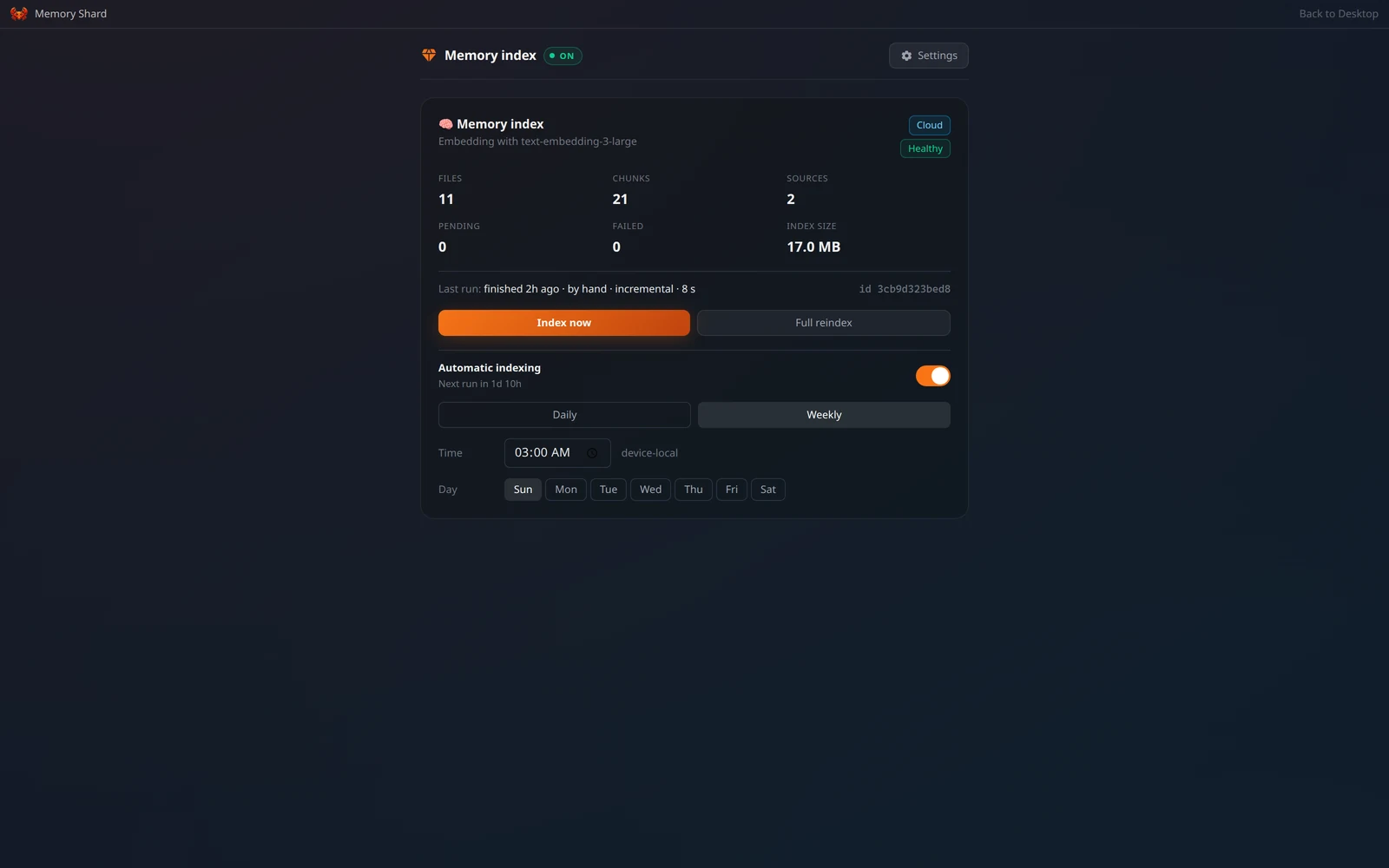
Memory Shard reads what your box already remembers — its notes and your past
conversations — and turns it into a searchable index the assistant can draw on. Point it
at folders of your own and it indexes those too.Open it from the Memory Shard icon on the desktop.
Memory Shard needs a Pro or Max ClawBox AI plan. The first step of its setup offers
the upgrade if your box is on Free or is not connected yet. See
ClawBox AI.
Setup is three short steps from there, and can be re-run later from its settings.
2
Choose folders to read
Point it at folders of your own — notes, documents, exports. PDFs, Word and
OpenDocument files are converted to text on the box before they are indexed;
nothing is uploaded to do the conversion. This step is optional: your notes and
conversations are indexed either way.
3
Pick when it refreshes
Indexing reads every source and re-embeds what changed, so it is best done while you
are not using the box. Choose daily or weekly, and a quiet hour.
4
Let it build the first index
The last step is where the index gets its embedding model, and it offers both:
ClawBox AI cloud or On this box. Where your plan covers the cloud model it is
already selected, so there is nothing to download and the first pass starts straight
away. Pick the box instead and it fetches its own embedding model first — about
640 MB, once.
Settings → Embedding model, inside Memory Shard, is a two-way switch — on every
edition:
Option
What it means
ClawBox AI cloud
Your notes and documents are sent to ClawBox AI to be indexed. Nothing to download, and the box’s own memory stays free. Needs a Pro or Max plan.
On this box
Qwen3 on the box’s own llama.cpp. Nothing leaves the box; the model is a one-time download of about 640 MB, and it sleeps between searches.
Memory Shard indexing through the ClawBox AI cloud
The cloud is the default wherever your plan covers it. A box that is connected to
ClawBox AI on a Pro or Max plan, and whose cloud model answers, indexes there without you
choosing anything — so a new box has nothing to download and its first index starts at
once. On this box is the opt-in, and once you pick it your choice stands: nothing moves
your index back on its own.A box that is not connected, or whose plan does not cover the cloud model, indexes on
itself, names the reason on the card, and moves to the cloud by itself — with the full
rebuild that move needs — once a plan that covers it is linked.Switching rebuilds the whole index. That is not a precaution — an index belongs to the
model that wrote it, so a switch is always followed by a full pass, and the card says so
before you press anything. Search keeps working on the old index until the new one is ready.When the cloud option cannot be picked, the card names the reason: the box is not
connected to ClawBox AI, the plan does not cover the cloud model, the service did not
answer this box (in which case it is retried on its own and the model on the box works
meanwhile). Picking the model on the box yourself is not a refusal: the cloud stays
selectable, and nothing moves your index back on its own.
The card names the model your index was actually built with, which is not always one of
the two buttons: on the OpenClaw edition an embedder pointed at directly in OpenClaw’s own
configuration is reported as Cloud and shown under its own model’s name.
Sending documents to be indexed is what the cloud option is: the text of everything you
index becomes the body of those requests. If that is not what you want, pick On this
box — it is a first-class option on every edition, and nothing about it depends on a
subscription once the model is downloaded.On the edition where ClawBox owns the index itself, those are the only two places it will
send anything. Every indexing pass and every search checks the address it is about to use
and refuses any other: the box’s own model, reached on the device itself, or the ClawBox AI
endpoint belonging to this box’s own account. What is stored is which of the two you chose —
never an address, and never a copy of a credential. On the OpenClaw edition the choice is
written into OpenClaw’s own memory-search configuration as an endpoint and a key, which is
why an embedder pointed there by hand shows up above as Cloud under its own model’s
name.
The app shows files, chunks, sources, anything pending and anything that failed, the
index size, when the last pass ran and what triggered it, and live progress through the
current pass. Index now runs an incremental pass; Full reindex rebuilds everything.Health is one of three words:
Healthy — the index matches the configured embedding model and is searchable.
Needs attention — usually the index and the model no longer match, which a full
reindex fixes. The card says which.
Unavailable — the box could not read the index’s state at all.
Turning Memory Shard off in its settings stops the schedule and refuses indexing by
hand. What is already indexed stays searchable. Start over switches it off, clears the
schedule and runs setup again, keeping your folders, the model and the existing index.
On the OpenClaw edition the index is the agent’s own, and it searches it as part of
answering you. There is nothing extra to do.
On the Hermes edition ClawBox builds and owns the index, and the assistant gets a
tool for it. Ask in plain words — “what does the lease say about the deposit” — and it
searches your documents, quoting the file each passage came from.
What comes back from your own documents is information for the assistant to read, never
instructions for it to follow. That rule is written into the tool itself.
The index and its state are device state: they survive updates and are wiped by a factory
reset, along with the rest of the device’s data. See
Filesystem Layout.