

Wallpaper
Four things ship on the box, and you can upload your own picture beside them.
A ClawBox running Hermes Agent shows no ClawBox artwork: that is another product’s
branding. Wallpapers you upload yourself are on every edition.
Beside the picture you get Fit Mode (fill, fit or center), Opacity and a
Background Color the wallpaper is composited over.
The mascot
Show Mascot puts a companion on the desktop. Click it to open the chat panel; its menu can send it to sleep or hide it.Mascot Pet
Settings → Appearance → Mascot Pet chooses the body your companion wears. It is on every edition.- The first tile is what your box wears with nothing picked. On a ClawBox running OpenClaw that is the ClawBox crab, which ships with the box: no download, works offline, and it cannot be removed. On a Hermes-edition box the first tile is None — an egg you can click to hatch a random pet.
- Every other tile is a community pet from the Petdex gallery. Picking one downloads its sprites to your device; they do not ship with ClawBox. Each tile is credited to whoever made it, and Browse the full gallery opens the whole collection.
- A pet needs an internet connection the first time you pick it, and works offline afterwards.
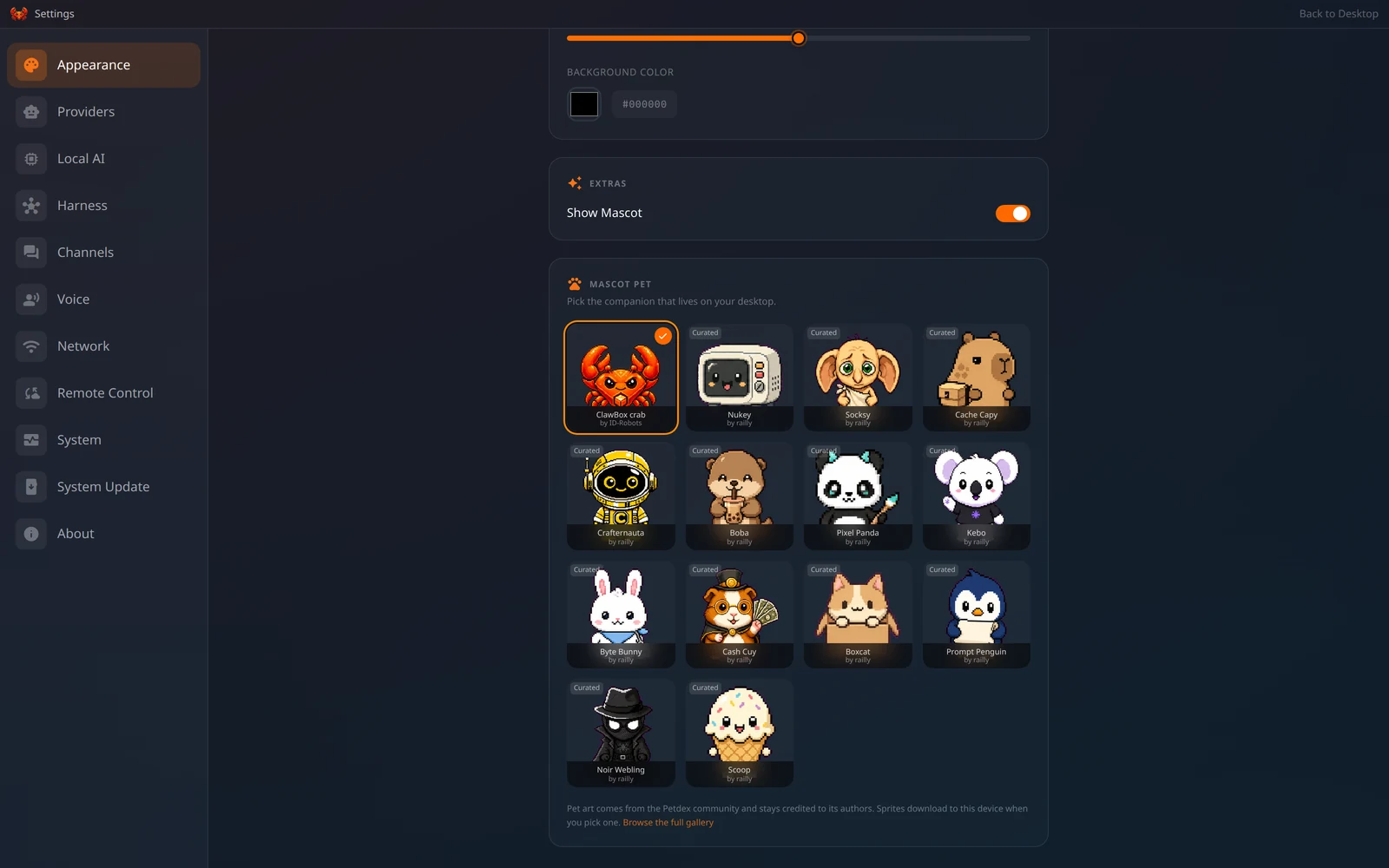
Settings → Appearance: Show Mascot and the pet picker
On the Hermes edition, picking a pet writes through Hermes’ own pet configuration — the
same store its CLI and dashboard read, so a pet chosen in a terminal moves this picker too.