

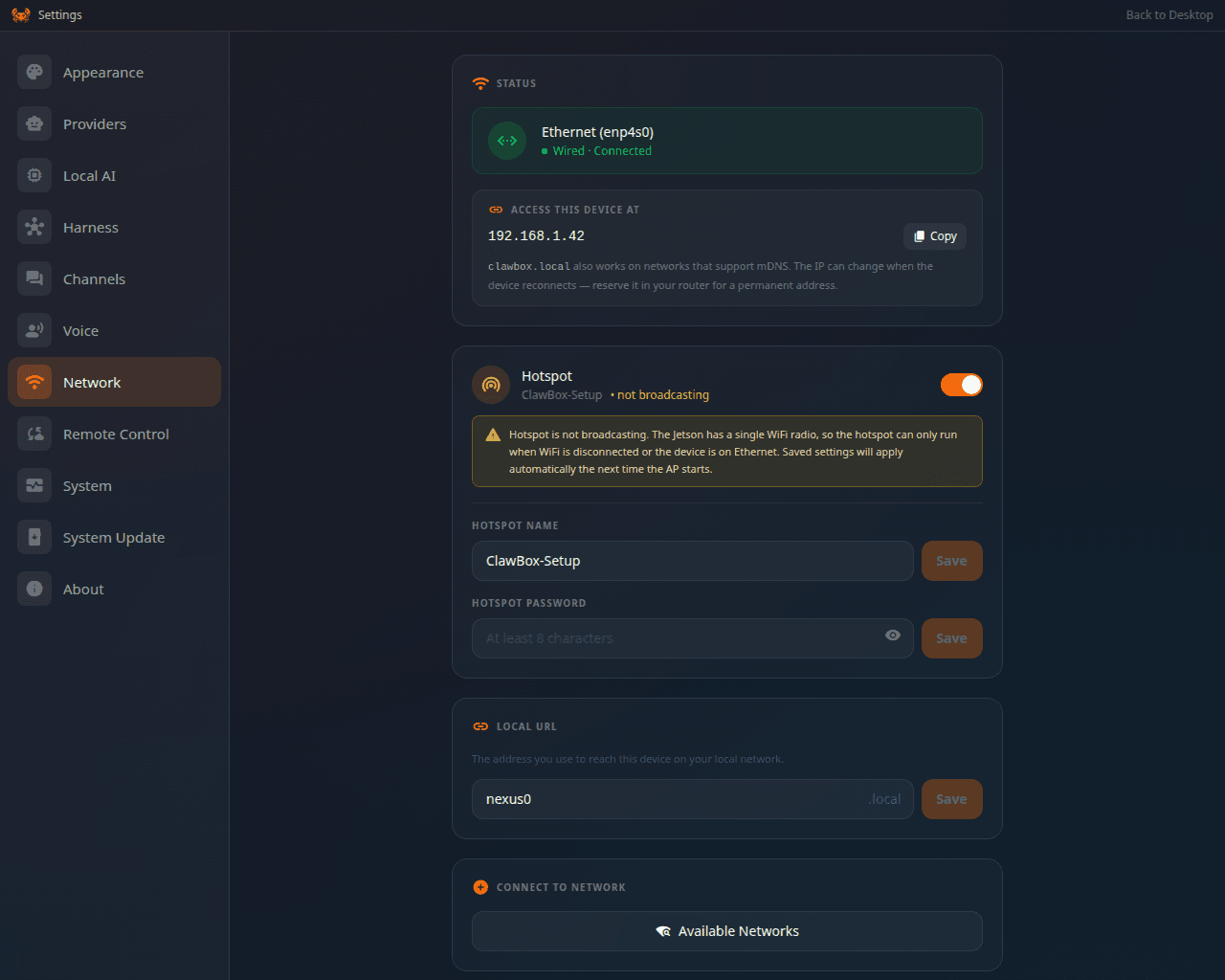
Settings → Network: what the box is connected to, and the address to reach it at
Ethernet (recommended for setup)
Plug an Ethernet cable into the ClawBox before powering on. It connects automatically — no configuration needed. This is the most reliable path for first-time setup.Wi-Fi
From the setup page athttp://clawbox.local:
1
Open network settings
Go to the Network section of the setup wizard or settings.
2
Select your network
Choose your Wi-Fi network from the list and enter the password.
3
Confirm
Wait for the connection to confirm. The device keeps your network saved for next boot.
Finding the device IP
Ifclawbox.local won’t resolve on your network, locate the ClawBox in your router’s
connected-devices list to get its IP address, then browse to http://<device-ip>.