

4.2
4.1
4.0
Earlier releases
ClawBox 4.2
Several people, one ClawBox
The owner adds users in Settings → Users. Each person signs in with their own name and password, and gets a desktop and a Terminal of their own; their Terminal runs as their own account on the box. Settings, installed apps and the assistant stay with the owner. The sign-in page only asks which user you are on a box that has more than one, and removing a user signs them out everywhere.Monitor mode, with a drop-down terminal
With the ClawBox desktop session, one desktop spans a row of monitors. Arrange them in Settings → Monitors: drag them into place, choose the main one, and set resolution, refresh rate, scale, rotation and mirroring, plus brightness where the monitor allows it. A new layout is undone after 20 seconds unless you keep it. Press Win+Down and a terminal drops down from the top of the screen; press it again to hide it.Back up project folders to GitHub
In Files → Projects, Back up copies a folder to a private GitHub repository, using the Coding Agent’s GitHub sign-in. After the first backup you can back up again, see the history, open the copy on GitHub, or turn on a daily backup that runs only when something changed. Files that look like passwords or keys, files over 50 MB and nested repositories are left out, and you are told which. A folder that already has its own GitHub remote is pushed to its current branch and never force-pushed.Kiosk mode
When ClawBox shows its desktop full screen, every page the desktop opens gets a ClawBox bar with tabs, back, forward, reload and an address field, and a new tab opens a ClawBox start page with search. The desktop’s shelf gathers those pages under one Web icon, so the desktop is always one click away.Choose OpenClaw or Hermes at setup
During first setup, right after Wi-Fi, a new ClawBox asks which assistant it should run: OpenClaw, which we recommend for most people, or Hermes. When your order named one, it is already selected. The box sets up your choice and removes the other to free space, which takes a few minutes. A box that already runs an assistant is never asked. See Editions.ClawKeep backups fixed
- Snapshots no longer carry old backup archives along, which had made them grow until the account was full.
- A link that cannot be archived is skipped and named, instead of failing the backup.
- Auto-backup switched off while the ClawKeep account is full is only paused: the ClawKeep card says so, and it switches back on by itself once backups can run again.
Fixes from hardware testing
- Voice input works with ClawBox AI’s transcription again, and falls back to the box’s own Whisper when the cloud cannot answer. Installing speech recognition from Settings → Local AI works on a freshly set-up box.
- Spoken replies no longer fail when the voice engine has to start from cold.
- Retry on the ClawBox AI plugin installs it and switches it back on, and the plugin no longer loops through a repair on every start.
- A box left on an older build by a failed update repairs itself at the next boot.
Smaller things
- Desktop windows and running Terminals survive a page refresh.
- Your chat tabs are the same on every device, and files the assistant sends in the web chat now download.
- The Files app selects several files at once, moves them by drag and drop, and lets you choose where an upload goes.
- With several Anthropic accounts, the chat and every coding run switch to the next account together when one reaches its limit.
- The update screen shows what is new in the version being installed.
ClawBox 4.1
Released September 25, 2026 ClawBox 4.1 makes chat easier on phones, makes conversation recovery more reliable, restores saved data for older web apps, and improves automatic coding-agent pull requests. After updating, the desktop shows a What’s new in 4.1 card. Choose Got it to hide it on all your browsers.More of the phone for the chat
On a phone the chat opens full screen. Its header and the message box’s options fold away, so the conversation gets the screen, and the text size can be set from 85% to 150%. Both choices are remembered in that phone’s browser. The desktop chat is unchanged. See Chat.A conversation that cannot reopen says why
Reopening a conversation used to wait with nothing to press when the box did not answer. Now every step of it has a deadline. When the box cannot bring the conversation back, the chat says why (the conversation is busy, the box did not answer, or it could not be restored) and offers Try again. The chat panel also offers Start a new chat, which opens a fresh tab and deletes nothing.Web apps built before 4.0 find their data
ClawBox 4.0 gave every web app its own private storage area. Some apps made on 3.9 could therefore no longer see data they had saved before the update. Version 4.1 safely copies that data into the app’s new storage the first time it starts. The original data remains in place, so it is still available if you roll back.Coding agent pull requests merge when green
Turn on Merge a pull request after review rounds clear and the coding agent can ask GitHub to merge its pull request after every required check passes. It will wait if a check fails, a conflict exists, or a reviewer still has an unanswered request. Pull requests markedhold or do-not-merge, and pull requests into main, are never merged
automatically. Runs using your own Anthropic account now default to Claude Opus 5.5.
More reliable updates and backups
- Updates now stop safely before making changes if the box contains data created by a newer OpenClaw version.
- Codex and ClawBox AI plugins left in Needs repair are retried automatically. The Providers screen shows Repairing… while this happens.
- An active swap file no longer causes an update to fail.
- ClawKeep handles common backup interruptions more gracefully and still stops safely when it finds damage that could risk your backup.
- Index now can rebuild a Memory Shard index left unusable by a 4.0 update.
Smaller things
- The chat’s default Anthropic model is Claude Opus 5.5 when you have not picked one.
- On a phone, View on a coding-run card brings the run’s page up in front of the chat.
- A coding-run card leaves the chat five seconds after its run finishes cleanly; the 🤖 chip brings it back.
- Settings → About, System Update and the What’s new card all name the same version, 4.1.0.
ClawBox 4.0
Released September 21, 2026 The fourth release turns the box from an assistant you talk to into one that also does the work: it writes code in your repositories and opens pull requests, it keeps one address you can reach from anywhere, it backs itself up, and it fits on a phone screen.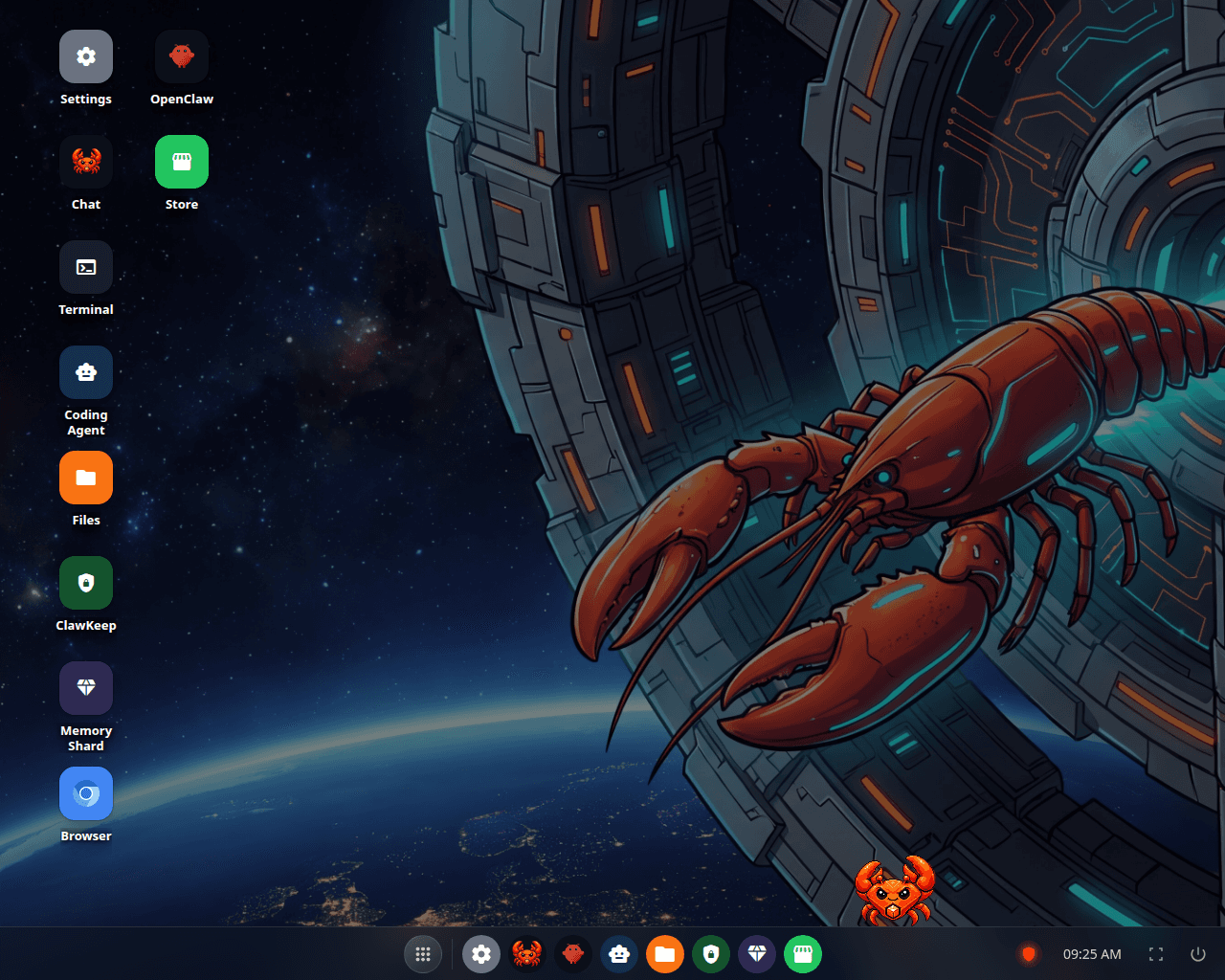
The 4.0 desktop, once setup is done and nothing is left to ask you
A coding agent that does the whole job
Coding Agent on the desktop hands a whole task to Claude Code running on this box. Point it at a folder, describe the job, and it reads and writes files there, runs commands, and reports what it did. Each attempt is a run, kept with its own page: the task, the folder, who asked for it, how long it took, how many steps it took, the files it touched, the models it used, and the final summary. The runs list keeps the recent runs in front of you and refreshes itself every few seconds while one is live. The box keeps the last 30 runs: a run that is live, paused or drafted is never dropped, and once there are more than 30 the oldest finished one falls off the end.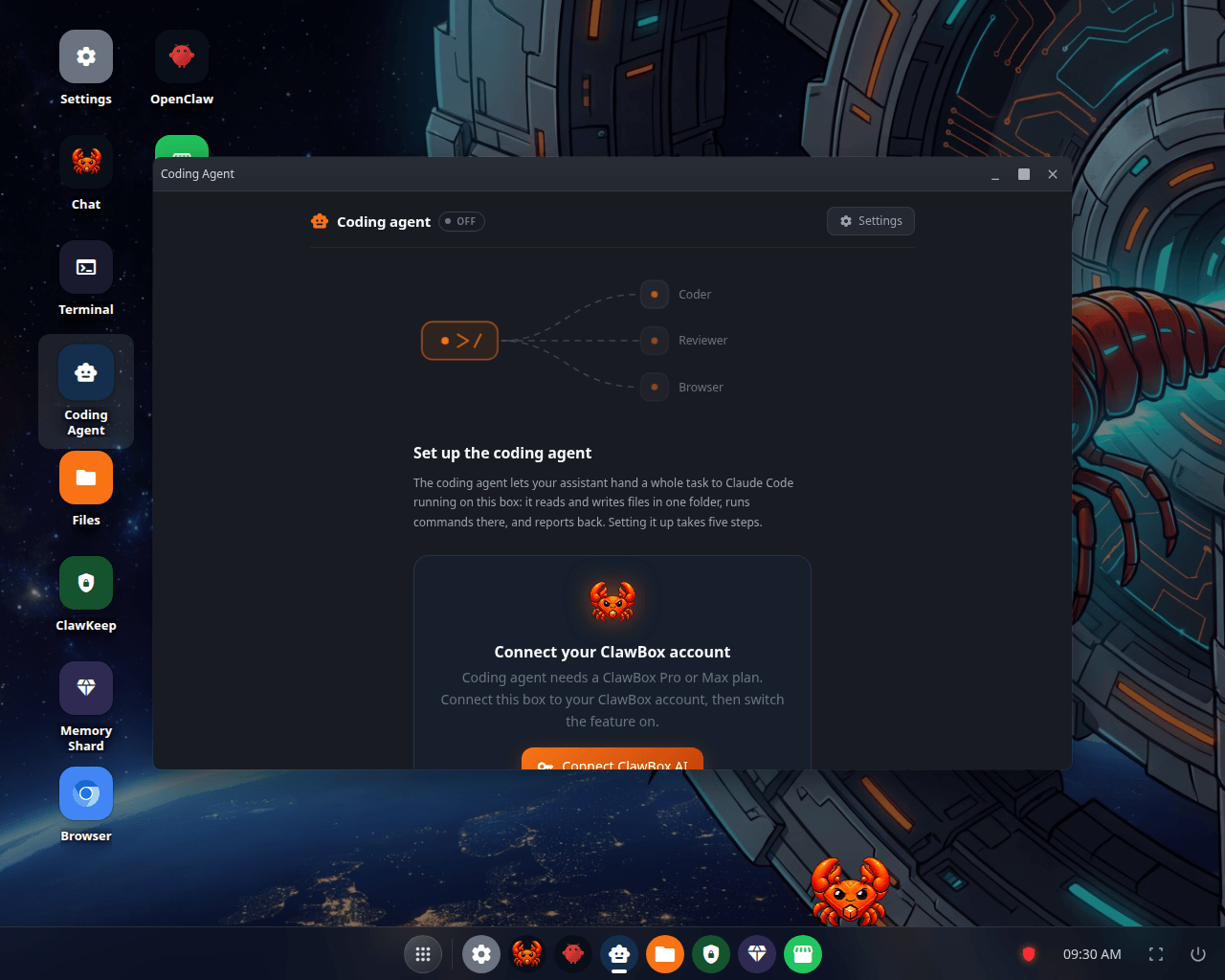
Coding Agent on a box that has not set it up yet: it wants a plan on your account first
Runs open pull requests, and review their own work
With the auto-PR switch on, a run that changes files in a git repository pushes its own branch and opens a pull request for it. The run’s page carries the pull request number, its title and its state, so you do not have to go looking on GitHub. With the review switch on, a completed run is followed by an automatic review pass: a second run that reads the first one’s work and reports what is wrong with it. The review is a run of its own, linked to the one it reviewed. When a pull request comes back with comments, or its checks fail, the agent can work the feedback in rounds until the thread is clear.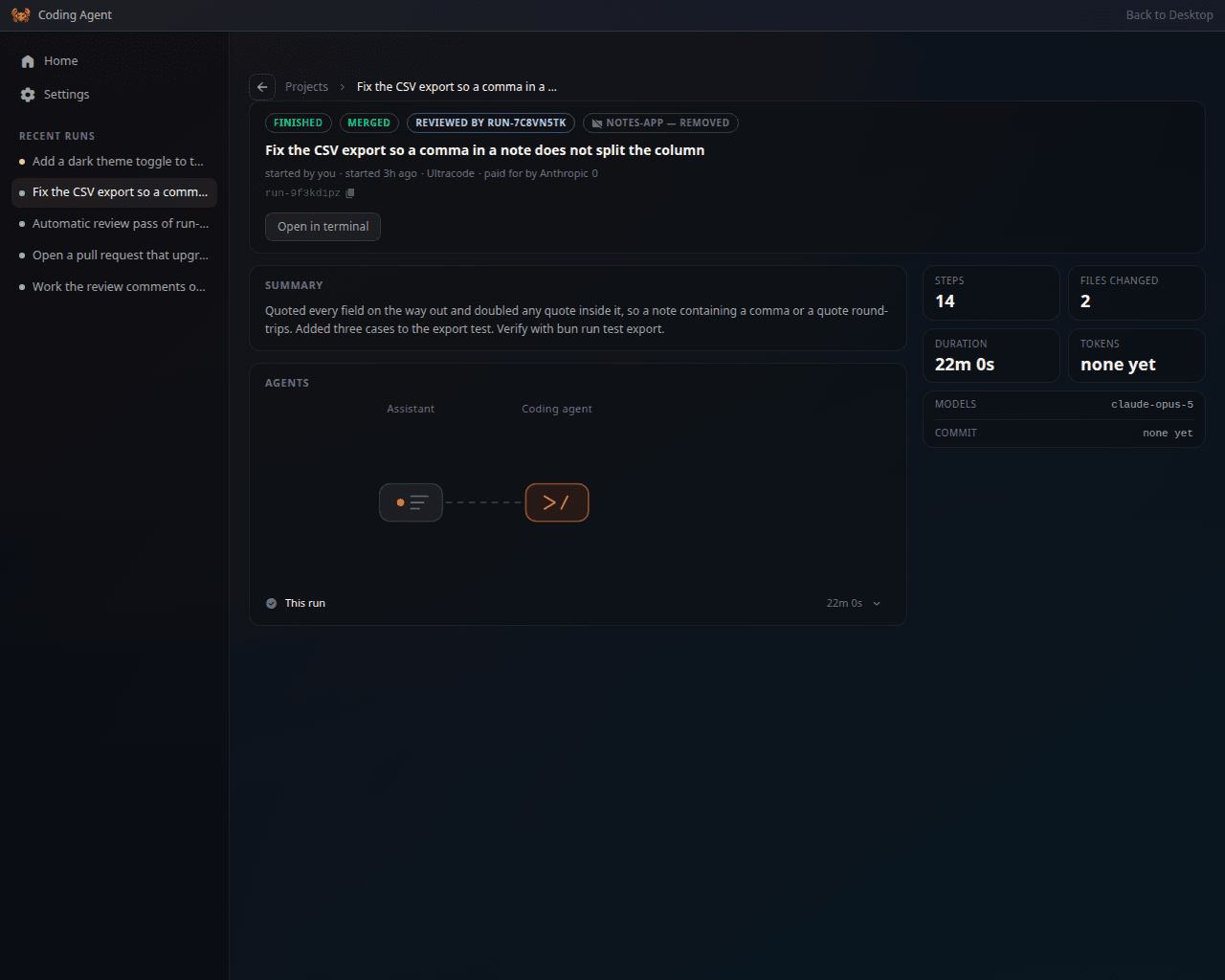
A finished run: the pull request is merged, and a review pass links back to it
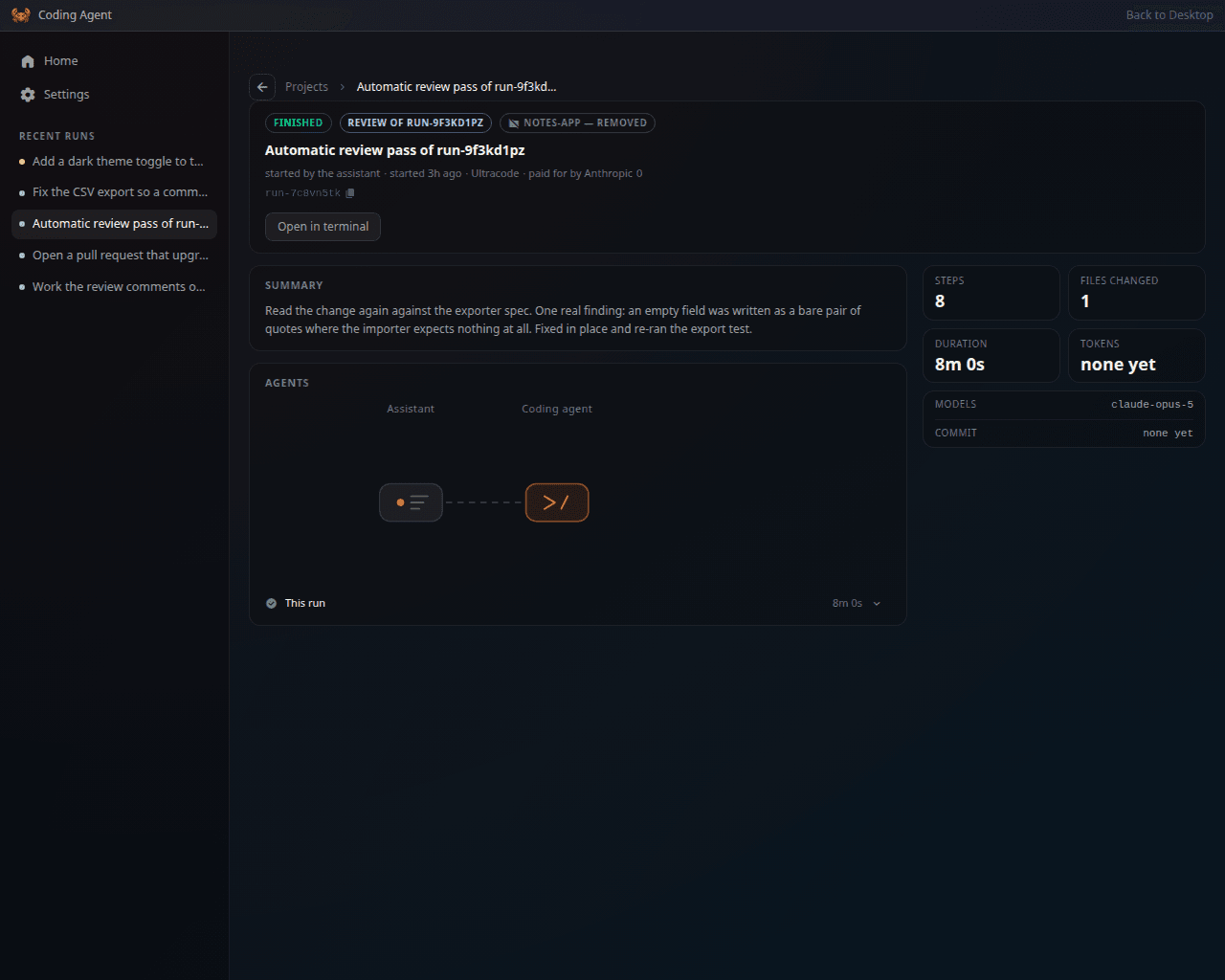
The review pass itself, a run of its own that reads the work of the run before it
More than one Anthropic account for coding runs
Settings → Providers → Anthropic accounts now holds several Claude Pro/Max accounts and API keys, in the order you choose. When the account a coding run is using hits its usage limit, the run moves to the next account and continues in the same session. Your first account takes over again as soon as its limit resets. If every account is limited, the run waits and resumes by itself at the first reset. Every move is recorded on the run’s page, so you can see which account paid for which part of the work. See Multiple Anthropic Accounts.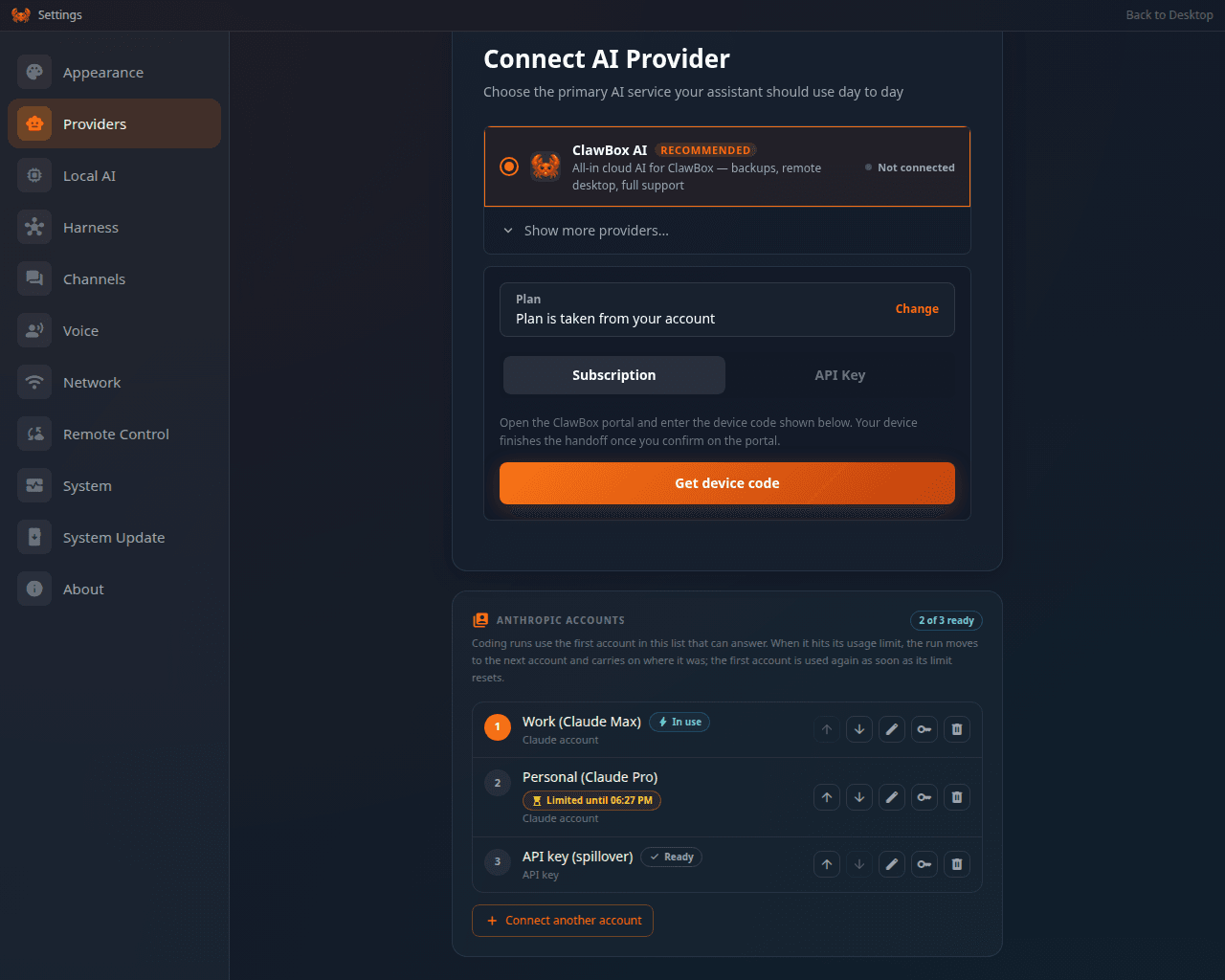
Settings → Providers → Anthropic accounts, with one account set aside until its limit resets
Watch a long task from the chat
A task that takes a while now shows a progress card in the chat, pinned between the conversation and the message box. It names the step the assistant is on, counts the steps that are done against the total, says when it last moved, and carries the assistant’s own note about what it is doing. Fold it away and it stays folded, on every chat surface, until you open it again.A terminal on the box
Terminal is a real terminal, not a log viewer. It connects to a shell on the box, so you can type commands, run a build, and watch it work. It has tabs, copy and paste, a right-click menu, and settings for the font and the colours. Where the browser offers WebGL it draws through the GPU, so the text stays sharp on a high-density screen, and where it does not the terminal falls back to drawing in the page.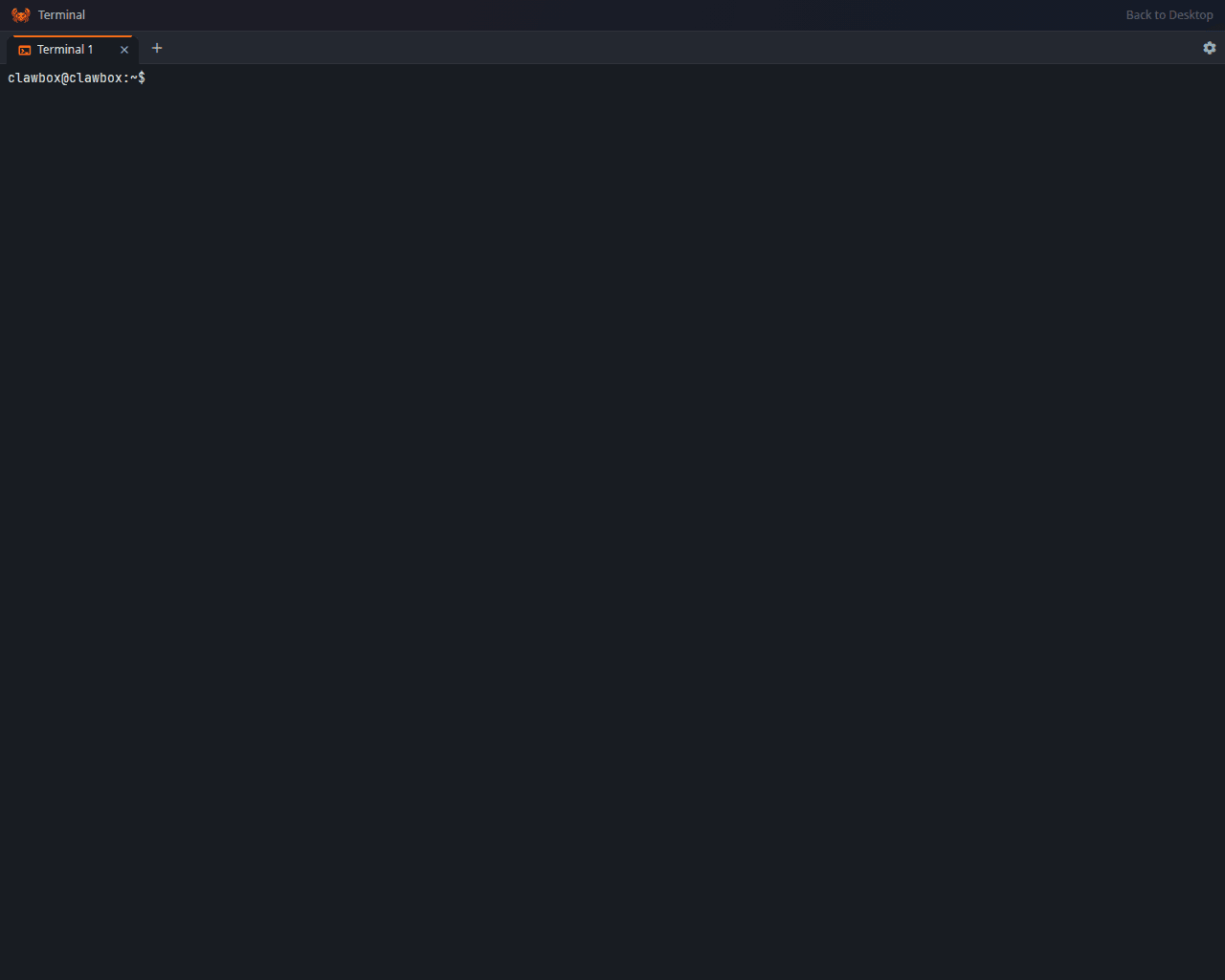
The Terminal app, with its own tabs and a shell on the box
Steer a run while it is running
The assistant can now drive the coding agent through its own tools: start a run, read its state, resume it, list the projects it knows about, and send a message into a run that is already going. So you can change your mind mid-task from the chat, or from Telegram, without stopping the run and starting again. The same tool set reads Memory Shard, Local AI and your ClawBox AI usage.Your box keeps one address
A box linked to your portal account gets a permanent address of its own, of the form<your-box>.clawbox.tech, and runs a named Cloudflare tunnel to serve it. The address
does not change when the box reboots, when the tunnel restarts, or when your home IP
moves, so a bookmark keeps working and the address is worth writing down.
The old quick tunnel is still there as the fallback, with its long random
trycloudflare.com address, for a box that has no named tunnel yet. Both live in
Settings → Remote Control. See Networking.
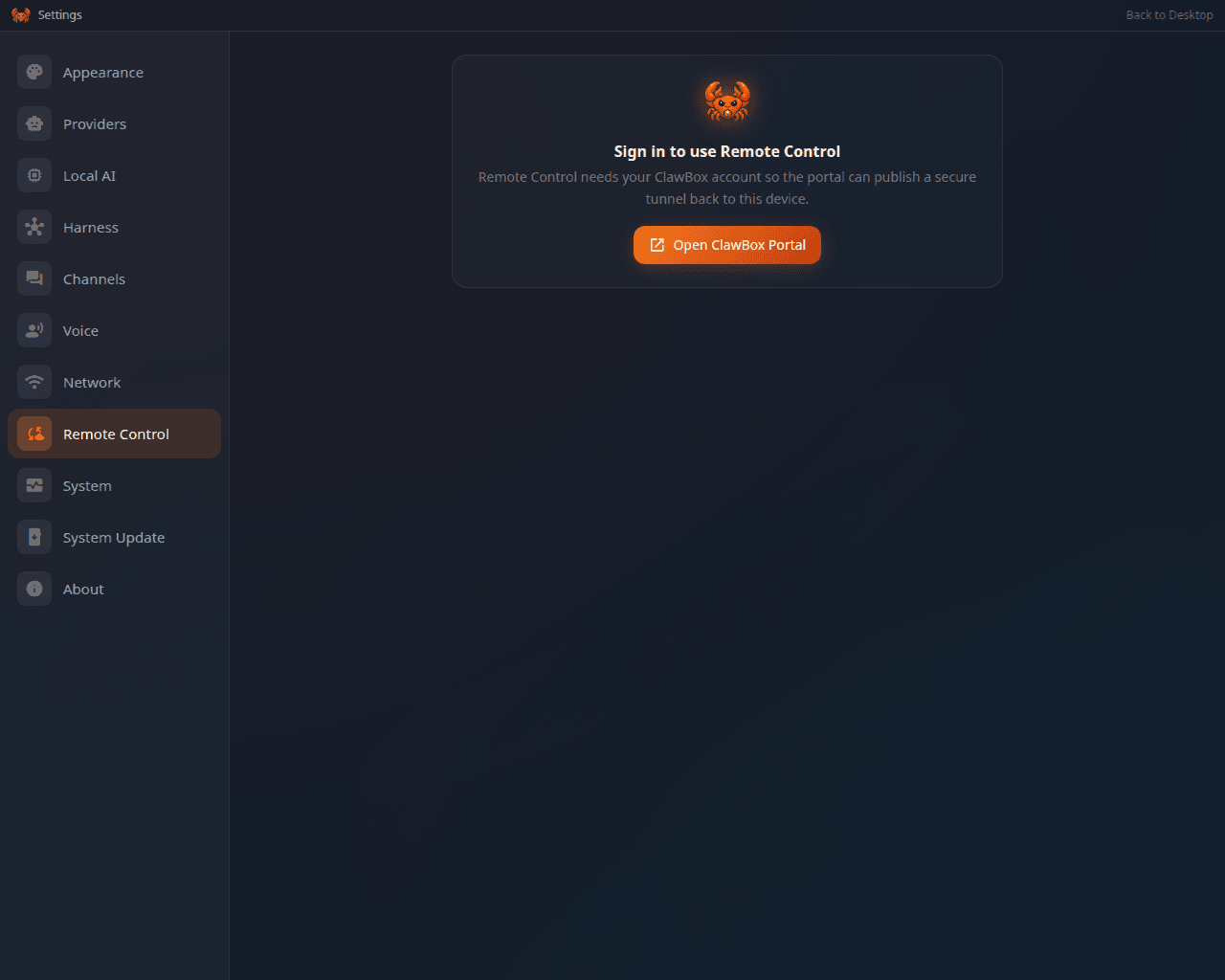
Settings → Remote Control, where the box's address is turned on and off
Switch your box between OpenClaw and Hermes
A box that shipped as one edition can now be re-made as the other from Settings → Harness, without a reflash and without a second box. The button installs the other agent, re-bakes the edition lock, carries your ClawBox AI sign-in, your Telegram bot and your memory folders across, and reloads the desktop. The same button swaps back. It needs the Max plan, an internet connection and about 3 GB of free disk. Staying on the harness your box already runs costs nothing. See Switching editions.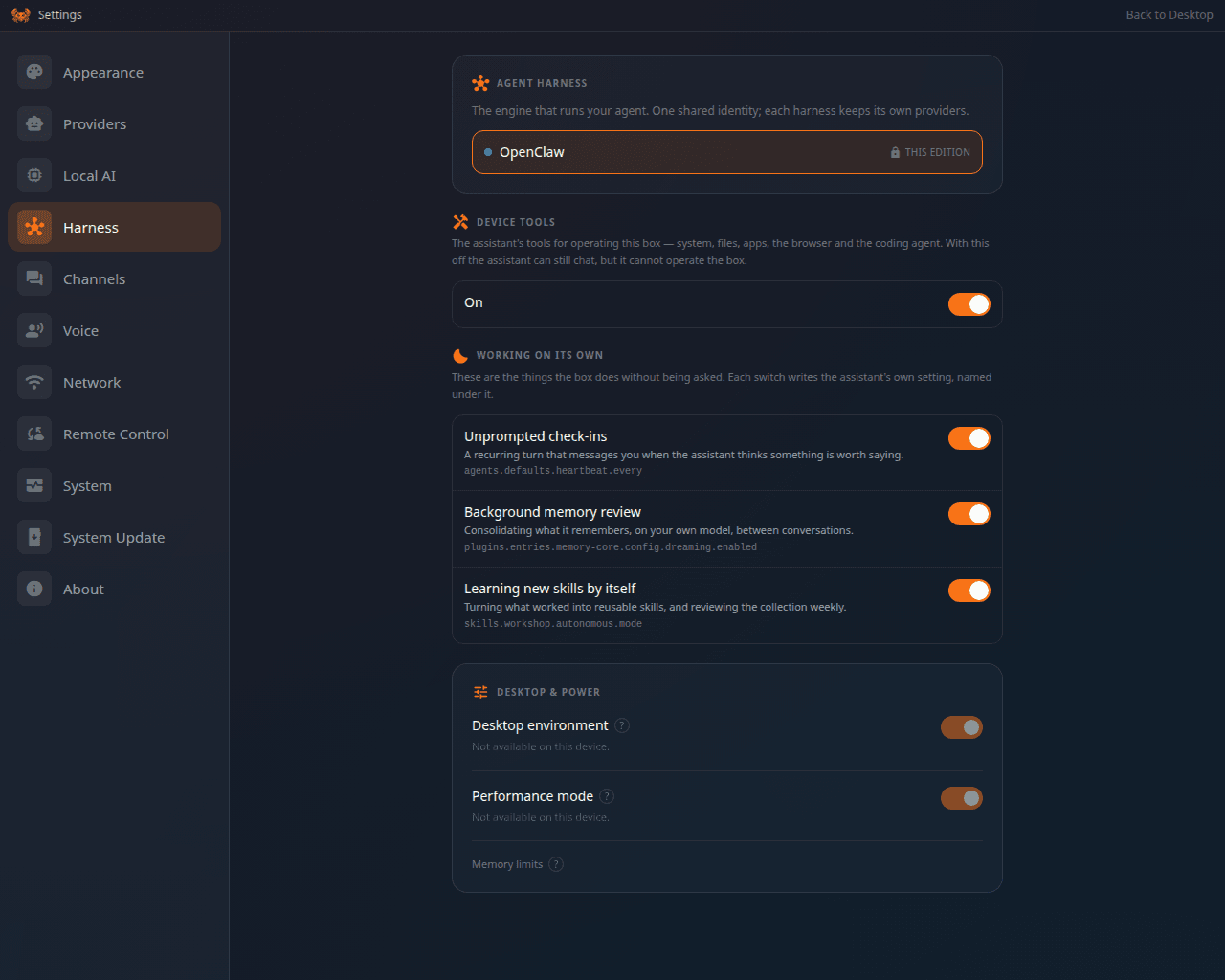
Settings → Harness: the engine the box runs, and the button that swaps it
ClawBox AI runs on DeepSeek V4
ClawBox AI has two models and your plan picks one. Free/Pro Tier is DeepSeek V4 Flash, the default and the faster of the two. Max Tier is the 1.6T frontier model and needs the Max plan. Both take a one-million-token context window and both are text in, text out. You do not have to choose a model on ClawBox AI: the chat names the provider and the plan decides the rest. See ClawBox AI.ClawKeep backs the box up
ClawKeep on the desktop takes your agent’s state, its configuration, its credentials and its saved conversations, and keeps them off the box. Pair it once with your account and it can back up on a schedule or when you press the button, hold several snapshots, and restore any of them onto this box or a replacement. The archive can be encrypted with a passphrase only you hold. Its card says when the last backup ran, how much cloud space you are using, and how many snapshots you have.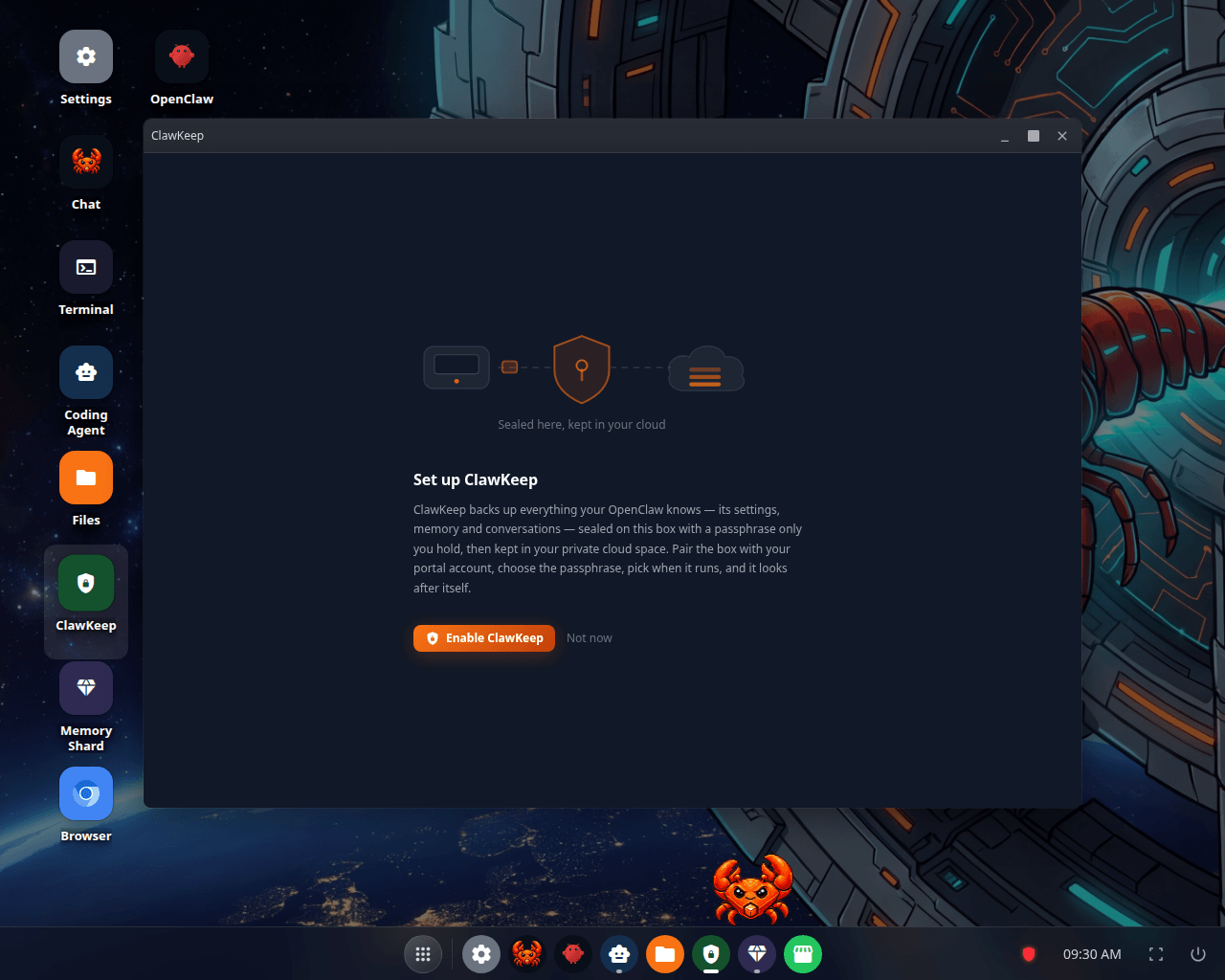
ClawKeep on a box that has never backed up: what it covers, and the button that starts it
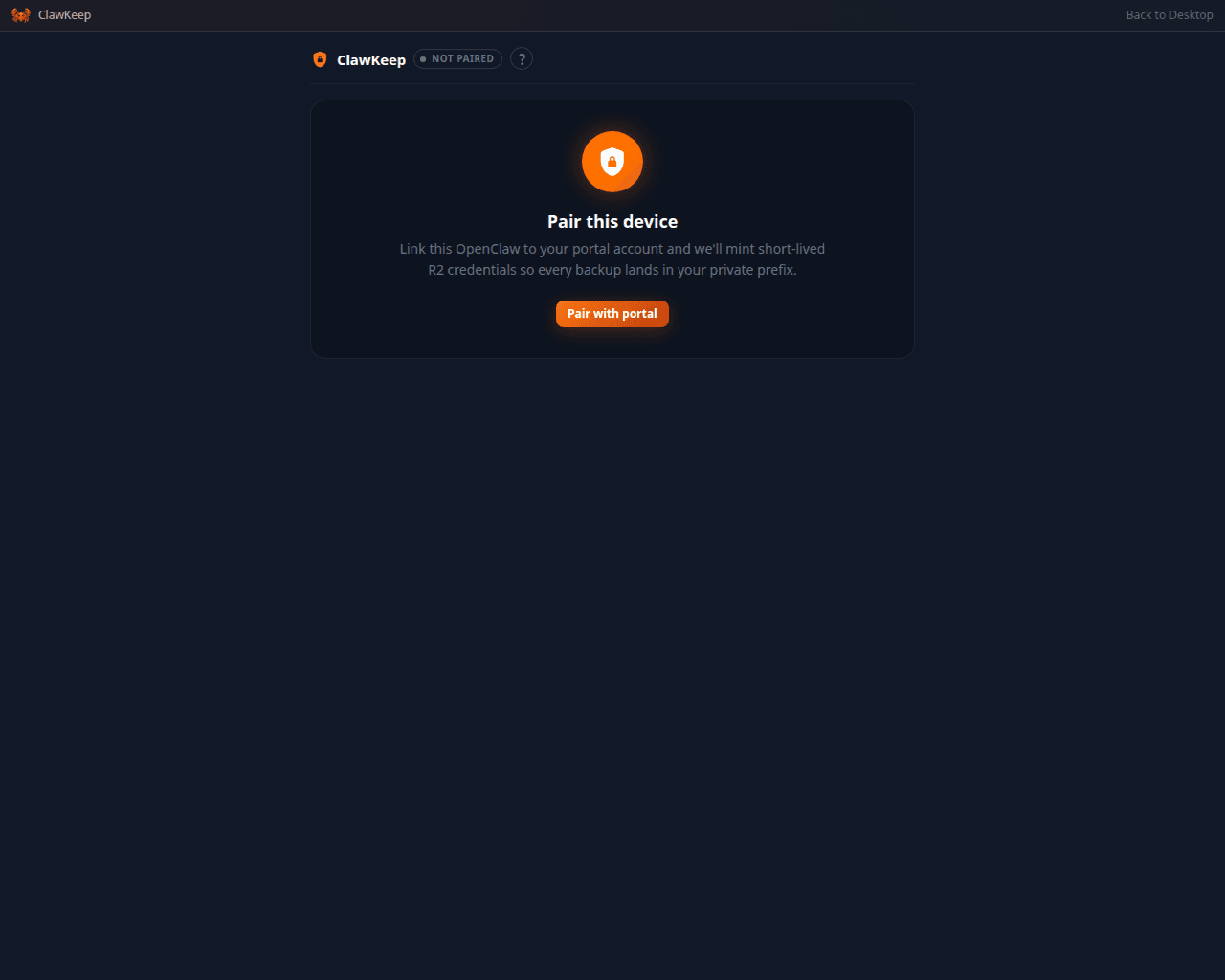
ClawKeep before it is paired: one button links the box to your account
The chat opens first on a phone
On a phone the box opens the chat, not the desktop: below 768 pixels wide, the chat is the landing surface, with a thumb-sized microphone, a composer that fits a portrait screen, and a Back button that walks up one level at a time instead of dumping you at the start. An installed home-screen app with a touch pointer gets the same treatment.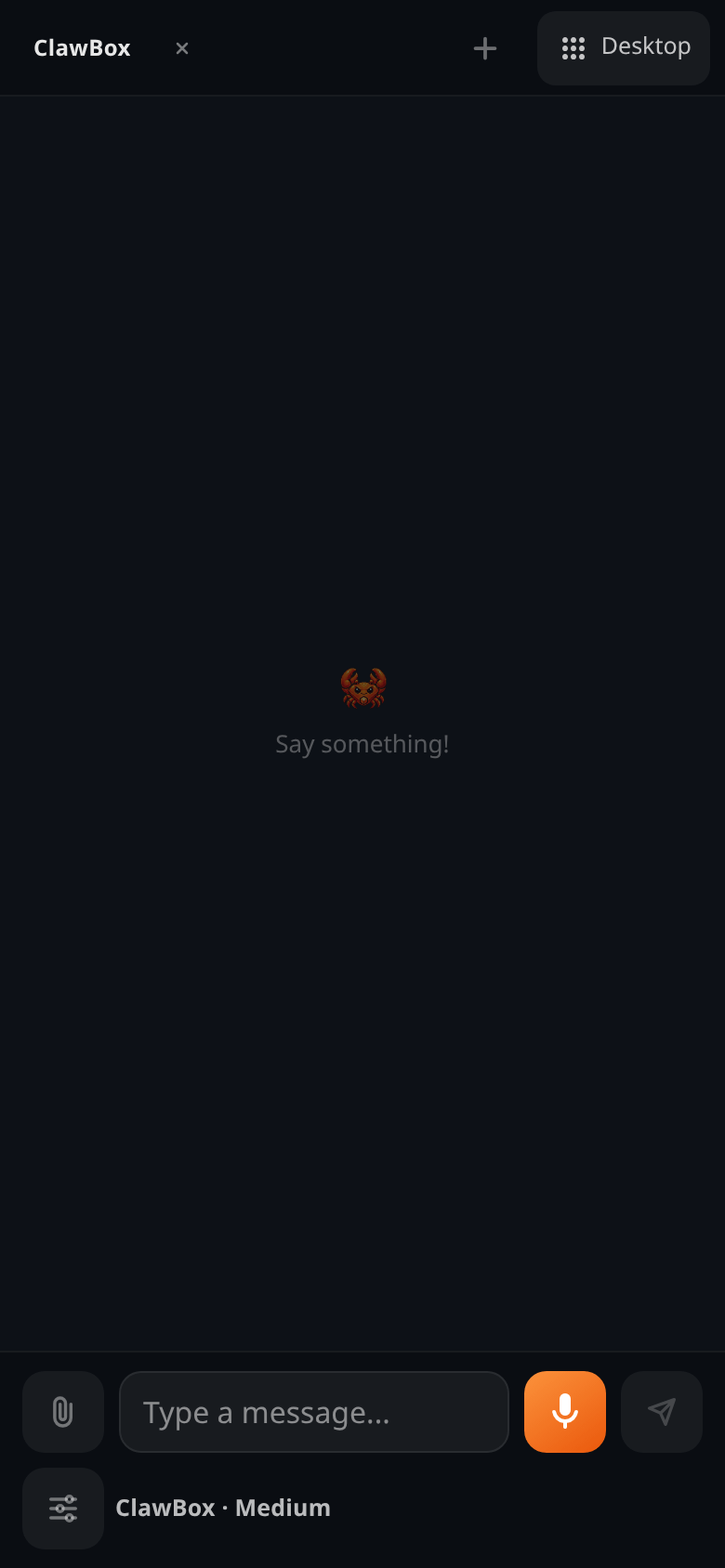
The chat in portrait: one composer row, with the pills folded behind a single control
Gemma 4 E2B runs on the box
The on-device agent model is Gemma 4 E2B Q4/INT4, Google’s own quantisation-aware release, running under llama.cpp. It is a 3.1 GB download and holds about 3.3 GB of memory on an 8 GB Jetson, which leaves room for the rest of the box to work. Install it from Settings → Local AI. See Local AI.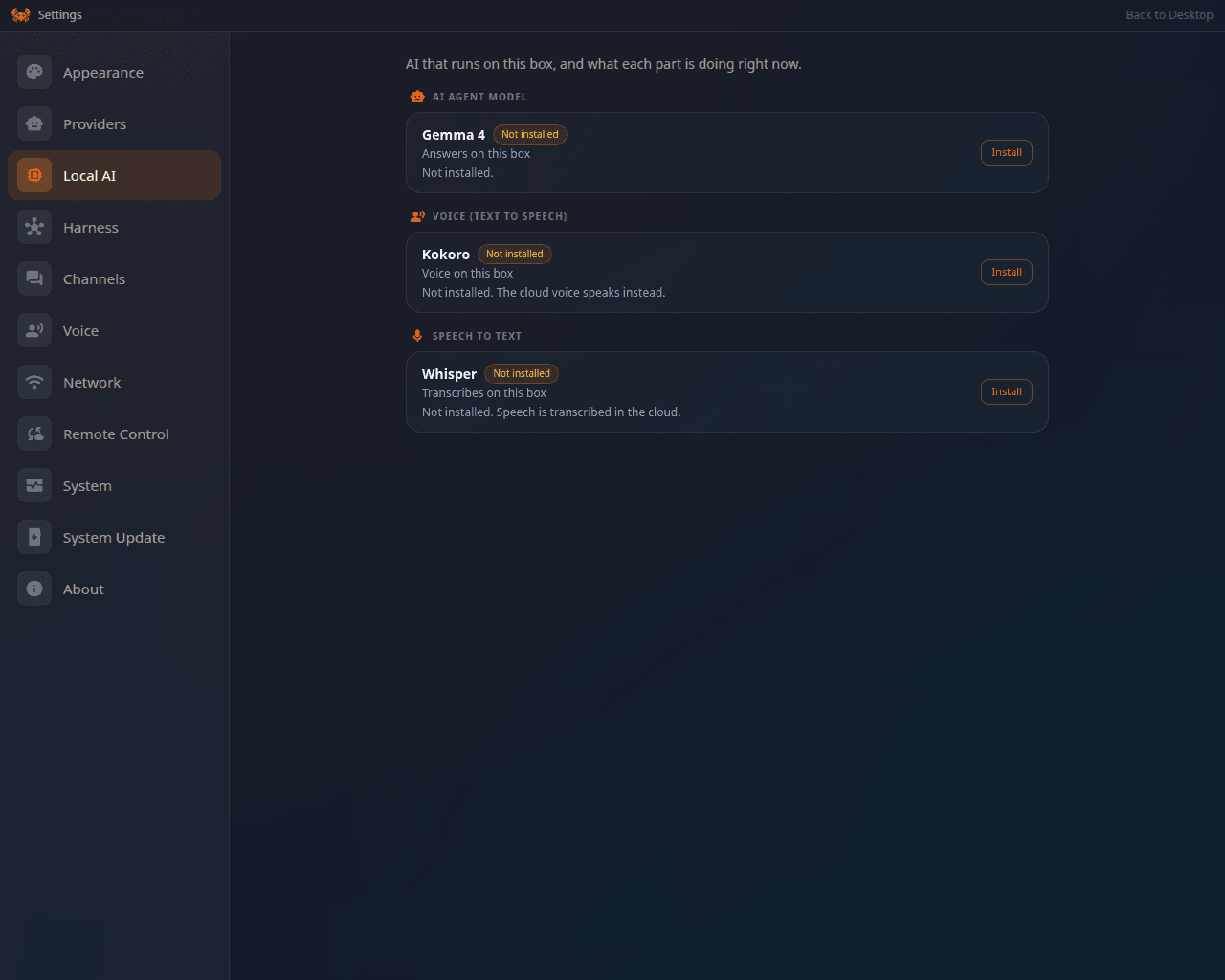
Settings → Local AI: every model that can run on the box, and what each one is doing
Change model without restarting anything
Provider, model and reasoning effort are three pills beneath the chat panel’s message box. Picking a different one applies to the running agent: nothing is restarted and there is no 30-second reconnect between you and the next message. See Chat.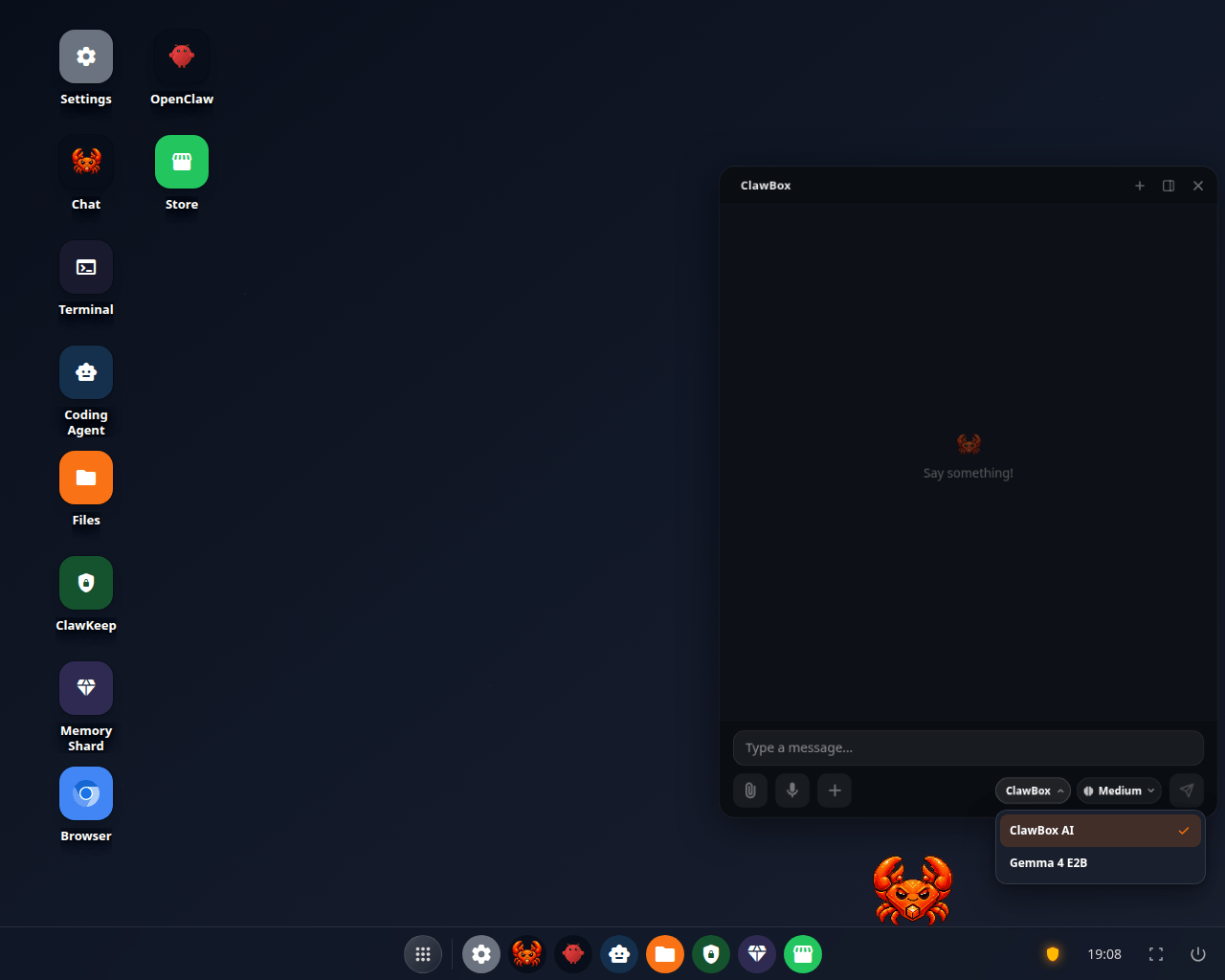
The provider pill open: switching to the on-device model without restarting the agent
A failed message tells you what the provider said
When a turn fails, the chat now prints the provider’s own reason instead of a generic “the run failed”. When a fallback model answered in place of your first choice, the reply says which model wrote it.Slash commands with autocomplete
Type/ in the chat composer and the commands your agent actually publishes appear in a
menu, each with its own description and argument hint. The list comes from the agent
itself, so it includes the commands your skills and plugins added. Both editions.
The assistant can ask you a question
When the agent needs a decision, it shows a card with the options it is choosing between, each with the consequence spelled out, plus a box for an answer of your own. Nothing happens until you send one.Spoken replies
The chat can read a reply out loud, with a player on the bubble and a scrubber. It is off by default: turn it on in Settings → Voice → Spoken replies. A box on the Max plan speaks with the ClawBox AI cloud voice; any box can install a voice of its own.ClawBox AI: usage, credits and plans in one card
Settings → Providers now shows your weekly chat allowance, the 5-hour burst window, the images, speech and memory-indexing meters, and your credit balance, read from your account rather than guessed on the device. See ClawBox AI.Voice, transcription and memory indexing use your plan’s cloud
On a box connected to ClawBox AI, on every edition, speech-to-text, text-to-speech and the memory index default to the cloud your plan covers instead of running engines on the box. The engines on the box stay the fallback, and stay selectable. A choice you make yourself is never overwritten. See ClawBox AI → What your plan powers.Nothing heavy is installed behind your back
A fresh install and every update now install only the local AI runtime and the small on-device model. The voice engine, the transcription engine and the 640 MB embedding model are installed when you ask for them, from Settings → Local AI or from Memory Shard’s own setup. Updates got much shorter as a result. See Local AI.Local AI is one inventory
Settings → Local AI lists every model that can run on the box, the agent model, the voice, speech-to-text and memory search, with Install, Uninstall, Enable and Disable on each row and what each one is doing right now. On the OpenClaw and dual editions, once the box’s own model is primary or fallback, a Local-only mode switch appears there and routes everything to the box, switching every cloud provider off. The Hermes edition has no equivalent.A Hermes plugin you install now reaches the chat
Hermes looks for plugins once, when the assistant starts, so a plugin installed or enabled after that was invisible to every chat, new conversations included, however healthy it looked from the command line. The box now handles it: when your plugins change, the assistant restarts itself so it picks them up, and the desktop shows a notice naming the plugin and telling you to open a new chat. The assistant can ask for the same restart itself, right after it installs something for you. The restart closes the chat window you have open. That is what the notice is for: open a new chat and the plugin is there. Hermes edition. See Hermes Edition.Memory Shard on both editions, and the cloud index by default
Memory Shard turns your notes, your past conversations and folders of your own documents into an index the assistant can search. It works on the Hermes edition too, and its settings let you choose where the index is embedded: the ClawBox AI cloud, or the model on the box. Since this release the cloud is the default on every edition wherever your plan covers it. A Pro or Max box that is connected indexes there without choosing anything, so there is no 640 MB model to download before your first index. On this box is the opt-in and is never overridden once you pick it, and a box that could not reach the cloud moves there by itself, with the rebuild that move needs, once a plan that covers it is linked. Memory Shard needs a Pro or Max plan. See Memory Shard.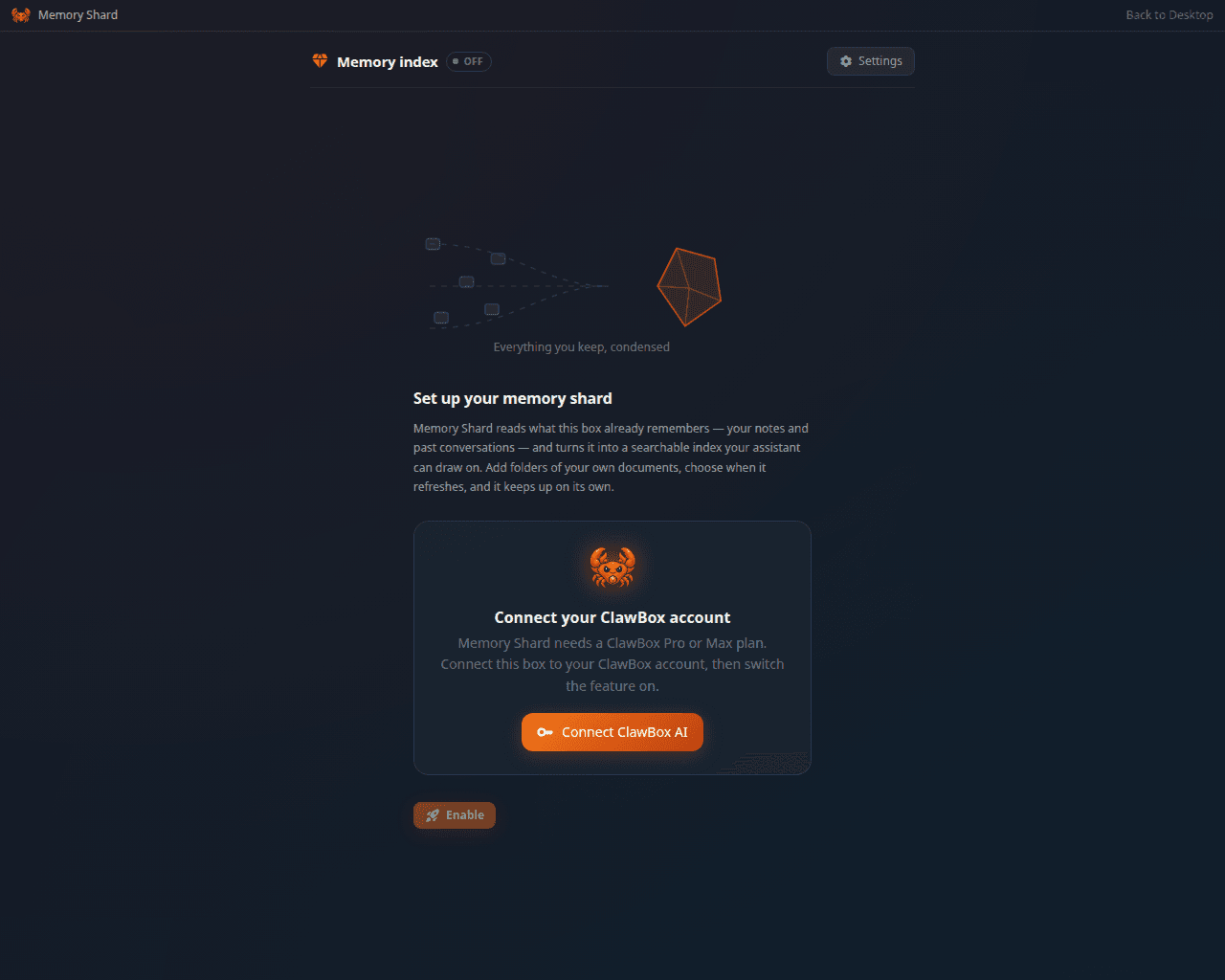
Memory Shard before its first index is built
Discord: paste the token, and that is all
Settings → Channels → Discord now reads your application id and your servers from Discord itself, builds the invite link on the box, and gives the server owner access as soon as the bot joins. There is no Application ID field to fill in any more, and no need to tell the assistant your user id. See Messaging channels.Sign in with a subscription you already pay for
Besides API keys, the provider step takes Claude Pro/Max, ChatGPT Plus/Pro and Google One AI Premium sign-ins. On the Hermes edition, Anthropic and GitHub Copilot sign in from the panel again, with the link and the code shown on screen.Pick your desktop companion
Settings → Appearance → Mascot Pet offers the ClawBox crab, which ships with the box and works offline, plus a gallery of community pets that download when you pick one. Every edition. See Desktop & appearance.Installing on your own x64 machine
install-x64.sh checks the host before it changes anything: ports already in use,
services it would replace, desktop services it would take over, and it lets you choose
the web, gateway and terminal ports. It can leave existing desktop services alone.
Smaller things
- ClawBox AI chat has no model to choose, so it names the provider and shows no model pill beside it. Its reasoning control starts at Medium.
- A sign-in that restarts the agent now re-points the chats you already have open, so an open conversation cannot keep running on the old model while the pills name the new one.
- The assistant’s own tools grew: it can read and send email you have approved, generate pictures and audio, drive the coding agent, and search Memory Shard on the Hermes edition. See Agent Interface.
- A box reached on a name that is not its own is refused on port 80, which closes a DNS-rebinding gap.
- An update that dies half way through now resumes instead of leaving the box in a state nobody can describe.
ClawBox 3.9
3.9.0 — August 21, 2026
- Added the Hermes edition and the ability to keep OpenClaw and Hermes installations safely separated.
- Made interrupted Hermes repairs reversible, with clear time limits instead of an update that can wait forever.
- Kept the Hermes agent and its local model through a factory reset, so recovery still works without an internet connection.
- Tightened validation around edition changes, saved preferences, sign-in handoff data, project names and browser dialogs.
- Added clearer reasoning controls and more honest status messages when a feature is not available on the current edition.
ClawBox 3.1
3.1.11 — July 28, 2026
- Finalized the previous gateway-recovery fixes for the stable release.
- Restored Codex chat for boxes signed in with a ChatGPT account and kept that sign-in working when its temporary credentials refresh.
3.1.10 — July 22, 2026
- Improved recovery when the OpenClaw gateway does not come back normally after an update or restart.
3.1.9 — July 20, 2026
- Fixed chat menus being cut off by their window or panel.
3.1.8 — July 20, 2026
- Kept model and provider menus visible near window edges.
- Restored reliable update detection and gateway recovery after rollout.
3.1.7 — July 19, 2026
- Updated OpenClaw and fixed updates on older Node 22 installations.
- Reset the active chat correctly after a model change.
- Removed unsupported Codex models and routed ChatGPT subscription models correctly.
- Prevented chat controls from overlapping on smaller screens.
- Added clearer update status for boxes following a pinned branch.
3.1.6 — July 17, 2026
- Improved AI-provider stability and guided Telegram setup.
- Expanded the public documentation with technical reference, troubleshooting and recovery guides.
- Added ClawReview, the repository’s automated pull-request reviewer.
3.1.5 — July 3, 2026
- Fixed ClawKeep restore for backup names containing a
+character. - Launched the public ClawBox documentation site and added a dedicated update guide.
3.1.4 — June 19, 2026
- Added Telegram pairing approval directly in Settings and on the desktop.
- Made Gemma 4 the single supported on-device assistant model.
- Added the full-update command and made branch updates replace incomplete local files reliably.
- Updated provider compatibility and fixed Anthropic, Google and OpenAI sign-in issues.
- Improved factory installation and local-model memory handling.
3.1.3 — June 12, 2026
- Added a true factory reset that removes the previous owner’s data and restores the default password.
- Made the installer refresh itself and report timeouts and overruns honestly.
3.1.2 — June 10, 2026
- Fixed the updater reporting success when a rebuild had actually failed.
3.1.1 — June 10, 2026
- Fixed Wi-Fi handoff after setup and corrected the installed-version display.
- Improved restart handling in automated update tests.
3.1.0 — June 9, 2026
- Added search plus an in-window viewer and editor to Files.
- Added a richer Skills Store with sorting, official badges and clearer details.
- Added named, lockable ClawKeep backups with automatic cleanup.
- Improved first-boot Wi-Fi handoff, hotspot recovery and reconnect screens.
- Strengthened the ClawBox device tools, gateway limits and per-device authentication.
- Stopped desktop apps reopening after every refresh and fixed several provider-status and local-model controls.
ClawBox 3.0
3.0.7 — May 29, 2026
- Added a visible reconnect screen while the gateway restarts.
- Fixed repeated authentication retries and kept the gateway token safe through updates.
- Improved Wi-Fi scanning before the setup hotspot starts.
- Added a Telegram switch for live progress messages.
3.0.6 — May 28, 2026
- Kept the Codex plugin on the same version as OpenClaw.
- Improved setup completion and disabled a conflicting user-level gateway service.
3.0.5 — May 26, 2026
- Updated the pinned OpenClaw release and made plugin repair automatic.
- Improved chat reliability, remote-desktop clipboard support and ClawKeep pairing.
- Kept paid-plan badges stable during short portal outages.
3.0.4 — May 19, 2026
- Fixed international text in the Remote Desktop clipboard.
- Made ClawKeep pairing clearer and fixed several setup and recovery problems.
3.0.3 — May 18, 2026
- Updated chat for the current OpenClaw protocol and repaired Codex automatically.
- Improved x64 installation, post-install checks and provider authentication.
- Made paid-plan changes appear without requiring a reinstall.
3.0.2 — May 5, 2026
- Fixed authentication for on-device AI, a model-list timing issue, ClawKeep access and incomplete updater synchronization.
3.0.1 — May 5, 2026
- Redesigned the chat header and loaded the model list from the connected account rather than assuming a fixed plan.
3.0.0 — May 4, 2026
- Added ClawKeep backups and Remote Control through a secure tunnel.
- Added ClawBox AI plans, model selection and reasoning controls.
- Added queued chat messages, clearer tool activity and faster chat restoration.
- Added stronger per-device gateway authentication and safer factory reset behavior.
- Added broader installation and end-to-end checks for real Jetson hardware.
ClawBox 2.2
2.2.2 — March 10, 2026
- Added Ollama as an optional on-device AI provider, with model search, download and removal controls designed for an 8 GB Jetson.
- Kept the selected update branch through updates and factory recovery.
- Improved gateway recovery after a reset and ensured Ollama is restored by a full rebuild.
2.2.1 — March 5, 2026
- Fixed Wi-Fi status and hotspot behavior when network setup is skipped or completed.
- Improved MAXN power-mode detection and made OpenClaw updates install the intended current version.
2.2.0 — March 4, 2026
- Improved the dashboard and OAuth setup.
- Kept Wi-Fi settings across updates and corrected OpenRouter model selection.
- Made normal updates return to the stable release branch.
ClawBox 2.1
2.1.0 — March 3, 2026
- Added sign-in with ChatGPT and Google subscriptions alongside API keys.
- Showed ClawBox and OpenClaw versions in the update screen.
- Improved factory-reset cleanup, error messages and automated checks.
ClawBox 2.0
2.0.0 — February 19, 2026
- Introduced the three-step first-boot setup and the redesigned ClawBox dashboard.
- Added local speech recognition and spoken replies, optimized for Jetson hardware.
- Added safer system updates, password changes and factory-reset recovery.
- Improved hotspot setup, Wi-Fi sharing, browser installation and device performance.